
# User Management
You find your team under Administration → User Management. The Users & Invitations list shows everyone else who has access to the organization, what they are allowed to do, and whether they have accepted their invitation yet.
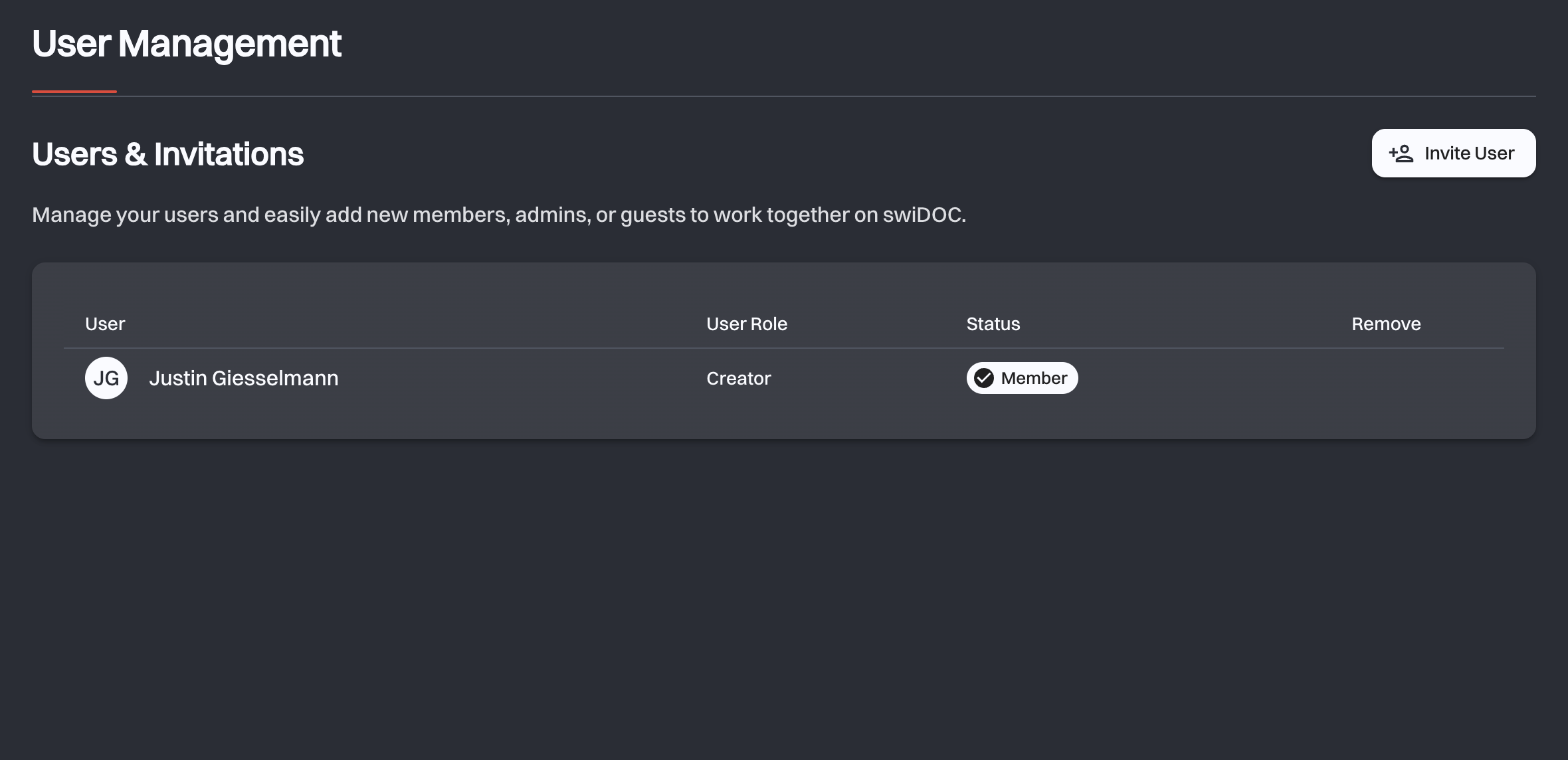
Each row has four columns:
| Column | What it shows |
|---|---|
| User | A member's name. For an invitation that has not been accepted, the email address it was sent to. |
| User Role | The role, as a dropdown you can change. Fixed for the organization's Creator. |
| Status | Member for someone who has joined, Pending while an invitation is out, Rejected if it was declined. |
| Remove | Removes the member, or withdraws the invitation. |
# Roles
Every member has exactly one role.
| Role | In one line |
|---|---|
| Creator | The person who created the organization. Full access, and the only role that can request a data export. |
| Administrator | Full access to documents and settings, and sees every folder whatever Access Management says. |
| Editor | Works with documents: upload, edit, move, and manage folders. Deletes folders, never documents. No settings, no AI assistant. |
| Viewer | Read-only. Views, downloads and searches, and changes nothing. |
# What each role can do
# Changing a role
Open the dropdown in the User Role column and pick another role. The change is saved immediately and confirmed with a short message, except when it moves someone to or from Administrator: then swiDOC asks first, as described below.
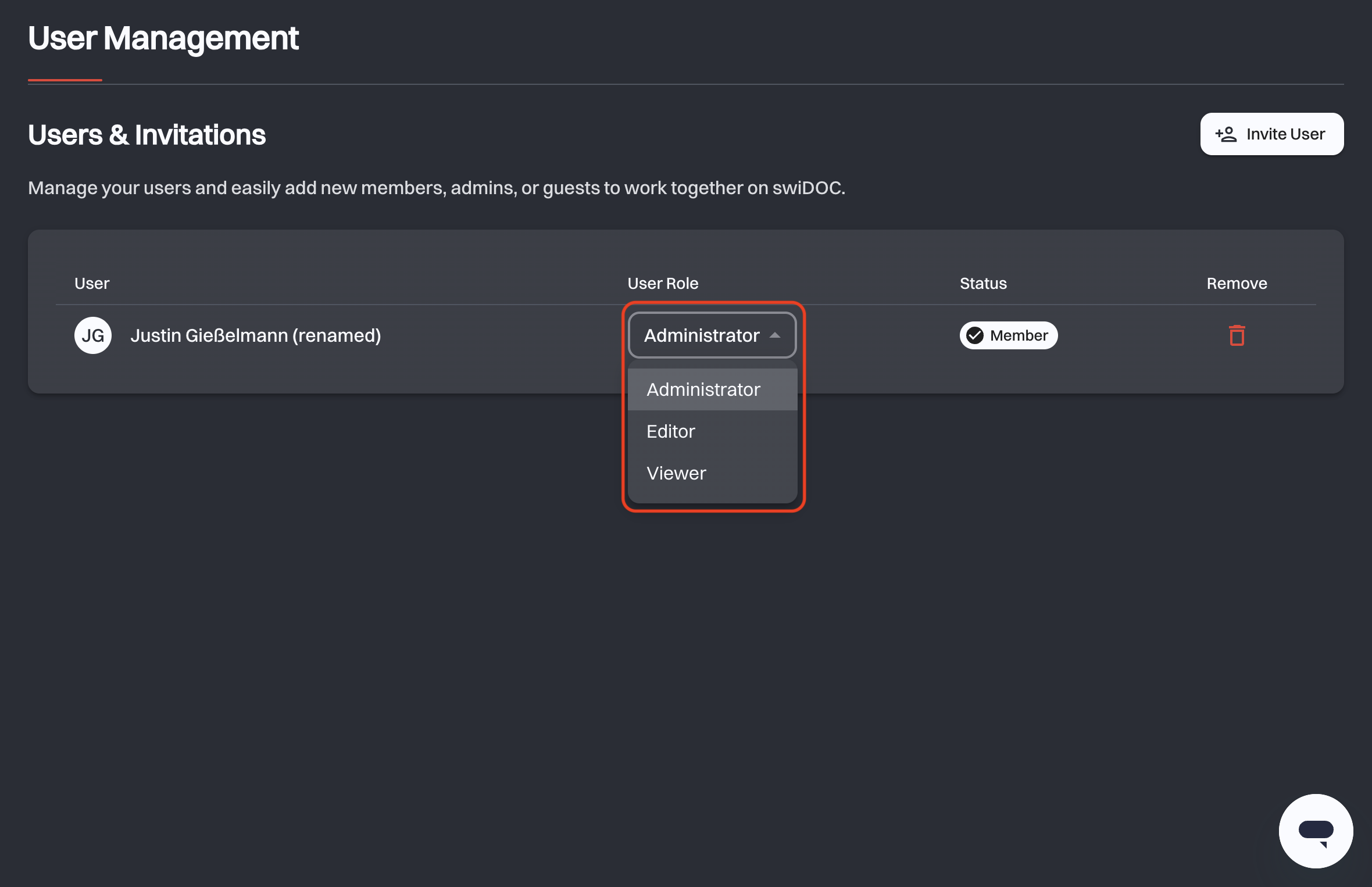
Creator is not in the list: it belongs to whoever created the organization and cannot be handed over. An invitation's role is also fixed once sent. Withdraw it and invite the person again if you picked the wrong one.
While the four-eye principle is on, the role of a deletion approver cannot be changed. Take them off the approvers first.
Making someone an administrator deletes their folder restrictions
An Administrator sees every folder, whatever Access Management says. When you change someone to that role, Give name access to every folder? asks you to confirm with Change role. Their folder restrictions are then deleted, and they are not restored if the role changes back. To keep the restrictions, leave them an Editor or a Viewer.
When you change an Administrator to Editor or Viewer, Choose name's folder access asks which folders they keep: Give full access, or Custom access with the folders to exclude picked on the same canvas as in step 3 of an invitation. Then click Change role. This choice needs a package with per-folder access control. Without it, the role changes directly and the person keeps every folder.
# Inviting people to the archive
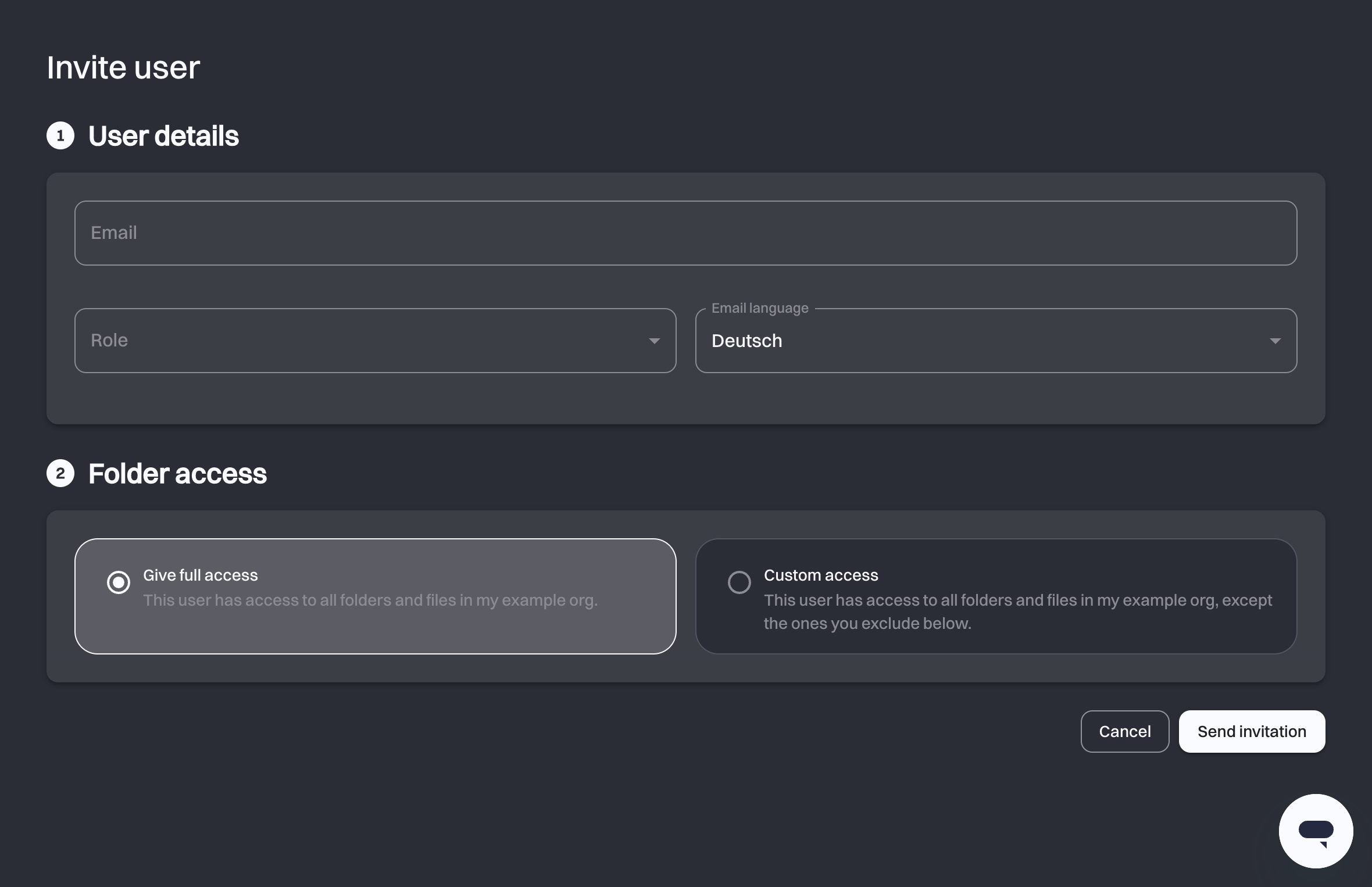
Click Invite User at the top right. The invitation is a page of numbered steps:
User details
Folder access
Customize Access
Then click Send invitation.
# Step 1: User details
- Email: the address the invitation goes to. You cannot invite your own address.
- Role: see the table above.
- Email language: the language the invitation email is written in. It does not affect the language the person later uses in the app; they choose that themselves.
You do not enter a name. The invited person fills in their own name when they create their account, which is why the list shows their email address until they accept.
# Step 2: Folder access
- Give full access: the person sees every folder and file in the organization.
- Custom access: the person sees everything except the folders you exclude in step 3.
Custom access needs Manage | Trustee 10 or higher
Give full access works on every package. You can only use access control from the Manage | Trustee 10 package up.
Custom access also has no effect on Administrators, since they see every folder regardless. When you select that role, the option is disabled and says so. Pick Editor or Viewer instead.
# Step 3: Customize Access
Step 3 appears only when you chose Custom access. It shows your organization's folder tree as a sunburst: the centre is the organization, each ring outwards is a level of subfolders. Click a folder to exclude it, and excluding a folder excludes its subfolders too. A line under the tree lists what you have excluded so far, and each entry has an × to put it back.
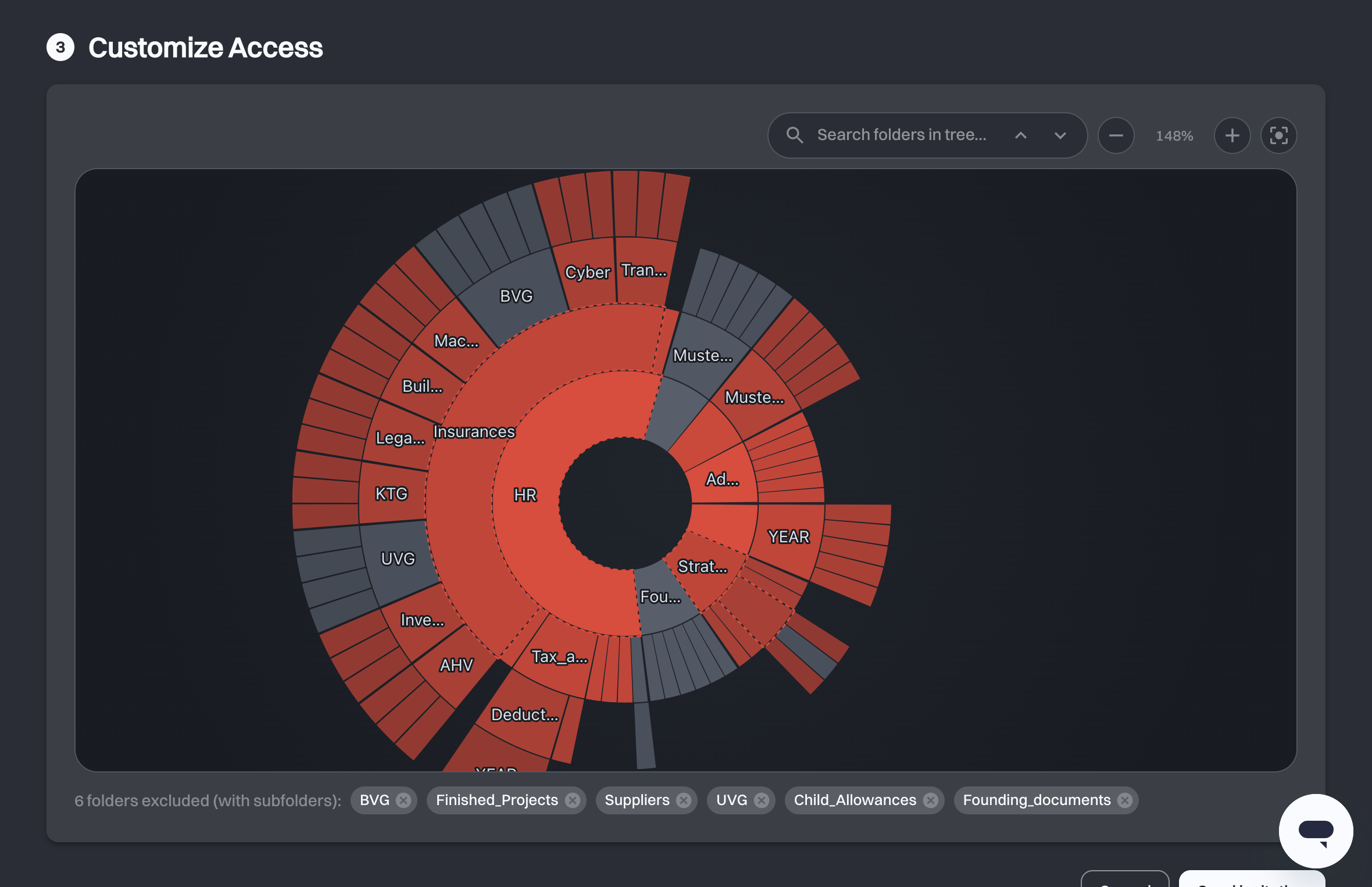
Use Search folders in tree… to jump to a folder by name in a large tree, and the zoom controls to work your way into a deep branch. The controls are the same ones the Access Management page uses, so they are described there in full.
Send now, refine later
You do not have to get the folder list exactly right at invitation time. Everything you set here can be changed afterwards, per person, in Access Management.
# After you send
The person appears in the list with the status Pending and the role you picked. They receive the email Invite to an organization with an Open Invitation button. Once they sign in to swiDOC, or create an account if they have none, a dialog asks them to join your organization, with Accept and Decline.
- Accept: they become a full member, their status changes to Member, their name replaces the email address in the list, and they can start working in the archive straight away.
- Decline: the status changes to Rejected. Remove the row and invite them again if it was a mistake.
Either way, the person who sent the invitation receives an email: Invitation accepted or Invitation declined.
Someone who accepts while signing up sees Setting Up Your Access while swiDOC adds them to the organization. This can take a few seconds.
They signed up before you invited them
Someone who creates an account before an invitation exists lands on a Waiting for Invitation screen. They do not need to do anything: send the invitation to the same address and it appears for them.
# If the invitation is refused
swiDOC tells you why. The reasons you are most likely to hit:
| Message | What to do |
|---|---|
| The person is already a member, or already invited | Nothing: check the list, the row is already there. |
| Your package's member limit is reached | Remove a member, or move to a larger package. See Subscription. |
| Custom folder access is not included in your package | Invite with Give full access, or upgrade. |
| The selected role has access to every folder | Administrators cannot be restricted. Invite with full access, or pick Editor or Viewer. |
| Your subscription is not active | Reactivate it on the Subscription page and try again. |
| One of the selected folders is no longer available | Someone moved or deleted it while you were choosing. Reload the page and pick again. |
| You do not have permission to invite users | Ask an administrator of the organization to send the invitation. |
# Removing a member, withdrawing an invitation
The Remove column does both, depending on the row:
- A member loses access to the organization immediately. The documents they uploaded stay in the archive.
- A pending invitation is withdrawn, and the person receives the email Invitation withdrawn.
- A rejected invitation is cleared from the list.
You do not appear in the list yourself, so you cannot remove yourself. The organization's Creator cannot be removed, and neither can a deletion approver: take them off the approvers in the deletion settings first.
# Related
- Access Management: change which folders a person can see after they have joined.
- Subscription: how many members your package allows, and how to change it.
- My Profile: the settings each person manages for their own account.