
# Recycle Bin
You find the Recycle Bin under Archive → Recycle Bin. Deleting documents is restricted to administrators, so this page is only visible to them.
Video tutorial
Watch the tutorial Dokumente löschen (inkl. 4-Augen-Löschung) (opens new window) on YouTube.
# Documents cannot be deleted early
Once a document is archived, it cannot be deleted for as long as its retention period runs. This is the point of a compliant archive: it guarantees that retention obligations are met and that nothing important is lost by accident.
This is not a permission you can be granted, and it applies to administrators too. A retention period can be extended at any time, never shortened.
# What ends up here
When a document's retention period expires, it moves to the Archiving Period Expired tab of the Recycle Bin. Nothing is removed automatically, and expired documents wait here until someone acts on them.
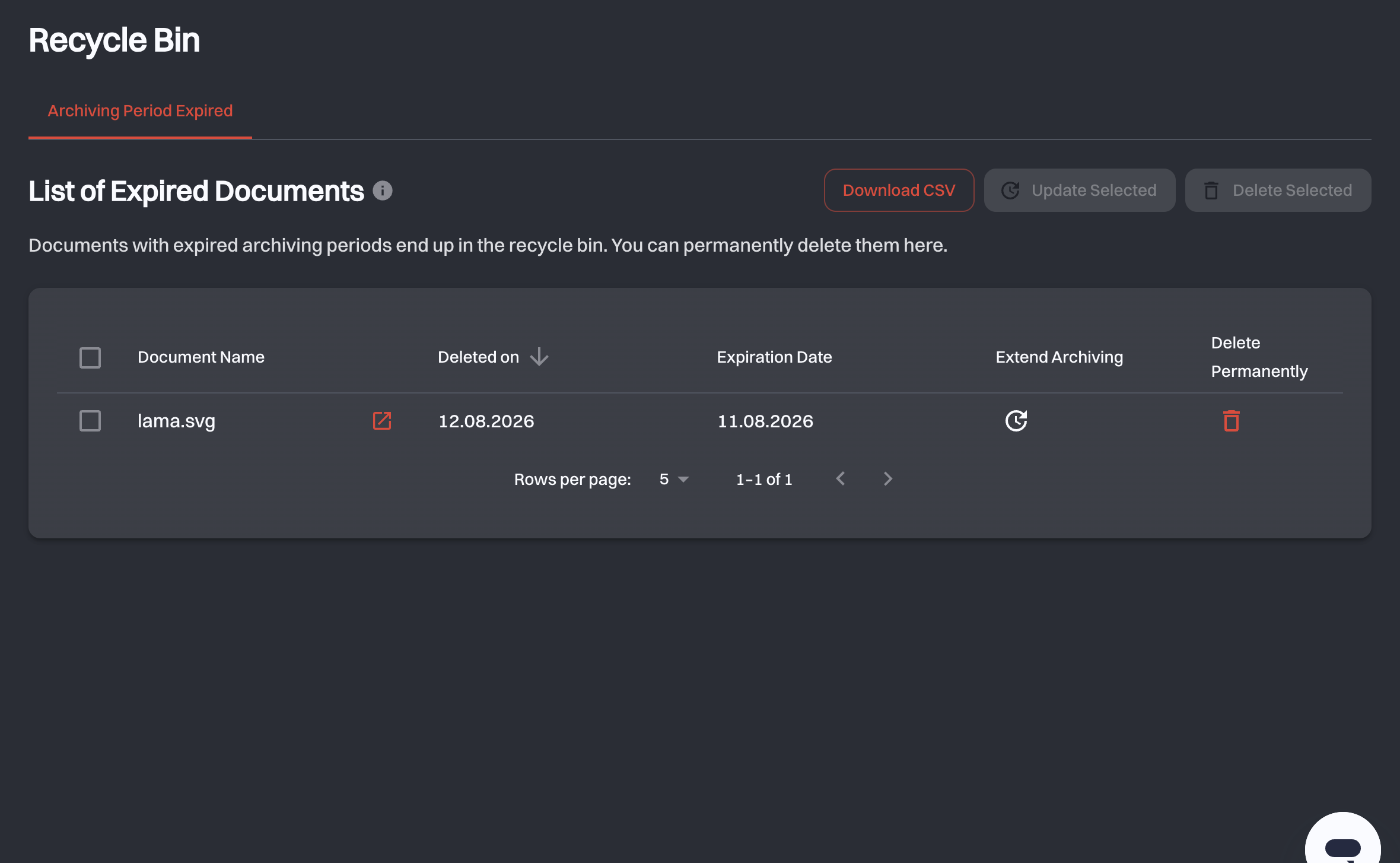
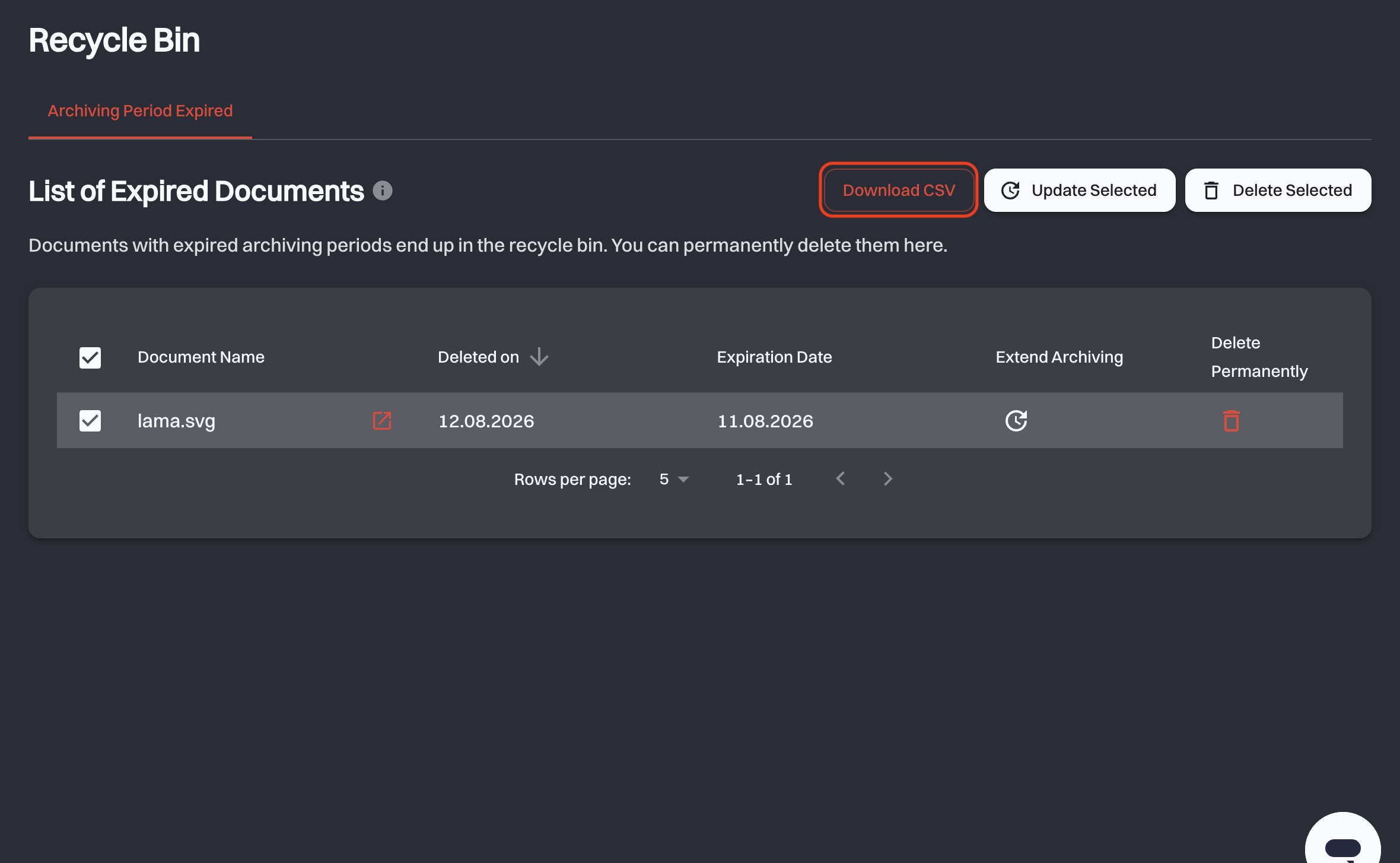
Each row shows:
| Column | What it means |
|---|---|
| Document Name | The document, with an icon that opens its details in a new tab. |
| Deleted on | When it moved into the Recycle Bin. Click the arrow to sort by it. |
| Expiration Date | When its retention period ended. |
| Extend Archiving | Give this one document a new retention period. |
| Delete Permanently | Delete this one document for good. |
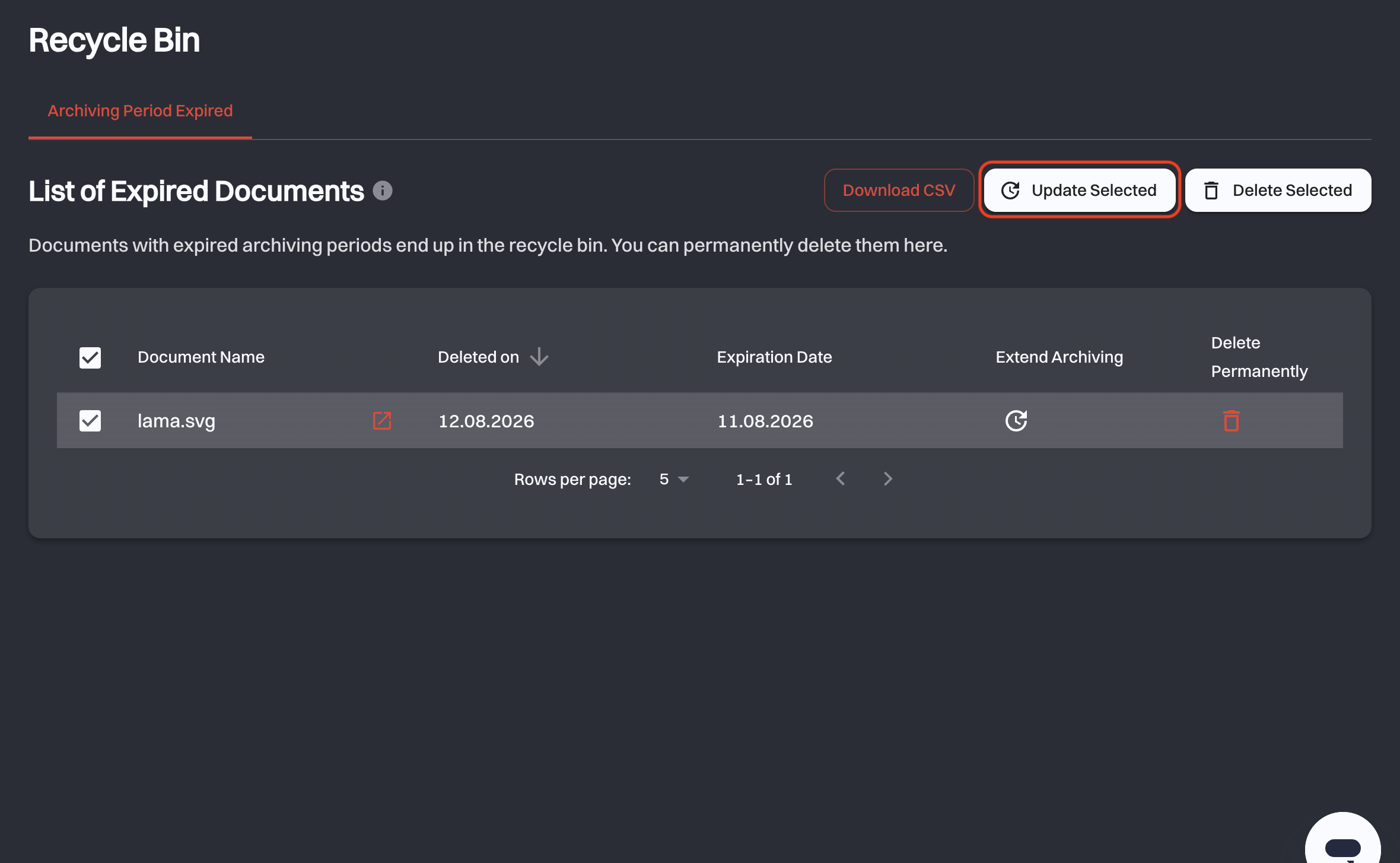
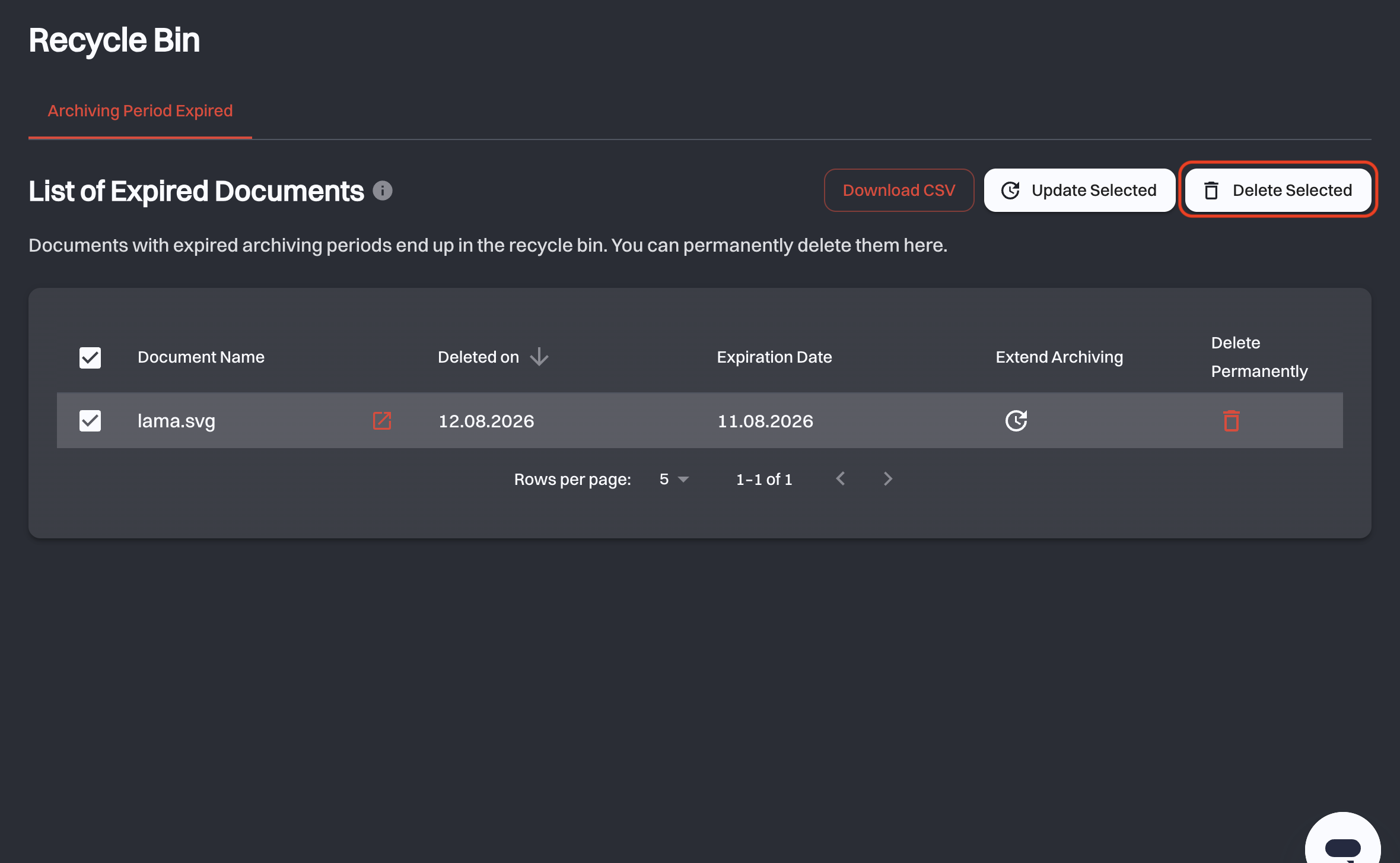
The checkboxes on the left select documents for the buttons above the table, which act on everything you have selected at once.
On a phone, the table has one column: the document name with both dates below it. The rows have no Extend Archiving and Delete Permanently buttons. Tap a row to select it, then use Update Selected or Delete Selected.
# Extending retention instead of deleting
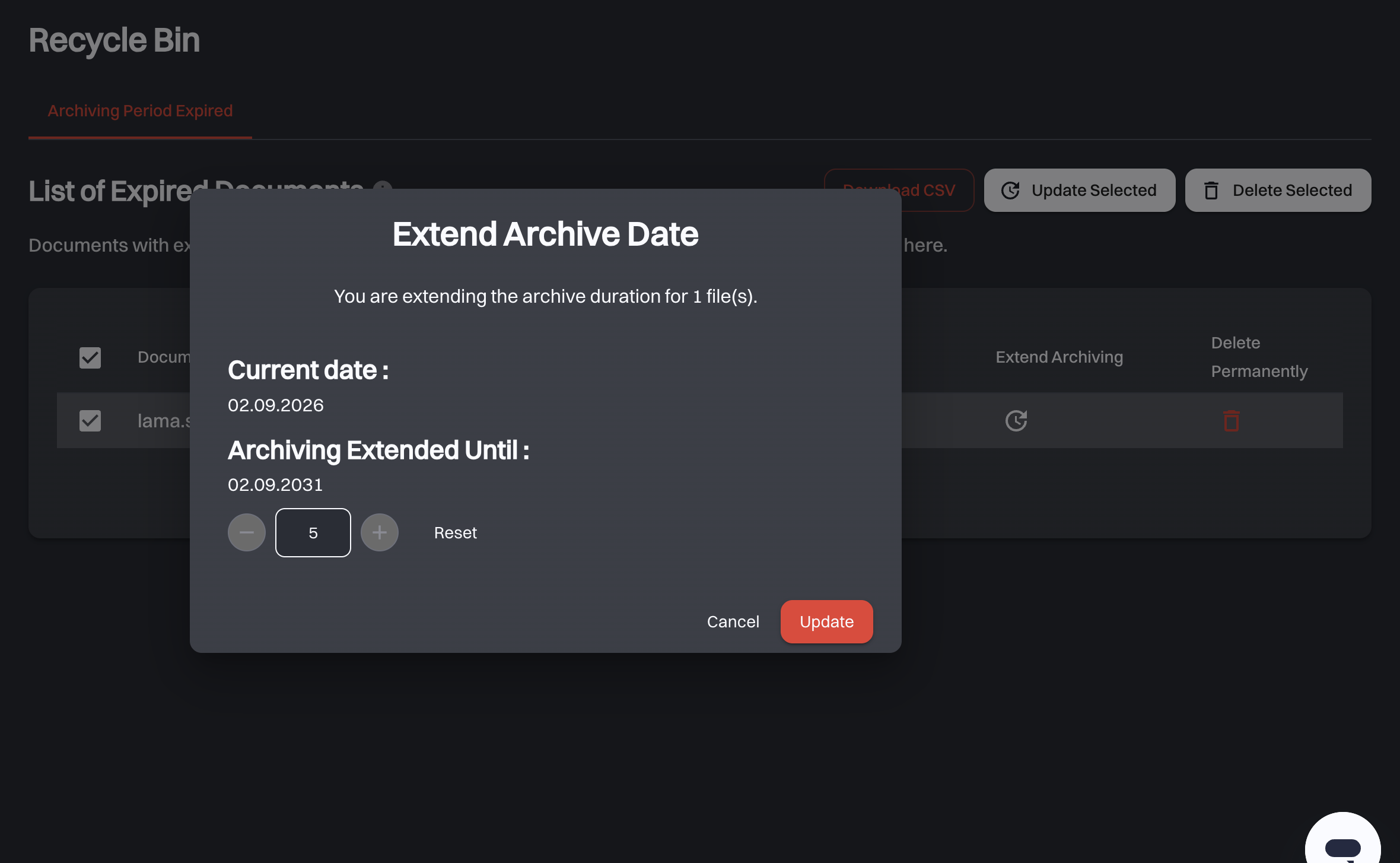
You can also extend a document's retention period, for example in case of a legal dispute. When you extend the retention period, the document goes back to its original place in the archive, where it is protected again until the new date.
Use the Extend Archiving icon in the row for a single document, or select several and click Update Selected.
In Extend Archive Date you set the extension in years, counted from today. The dialog shows the resulting Archiving Extended Until date as you change the number, and Reset puts it back. Update applies it to all the documents you chose. The dialog shows how many that is.
# Deleting permanently
Use the bin icon in the row for a single document, or select several and click Delete Selected. Either way you are asked to confirm before anything happens.
There is no undo
Permanent deletion cannot be reversed. The document, its content and its proof of authenticity are gone. What remains is the record that it existed and who deleted it, in the Chronicle and in the CSV report below.
# The deletion report
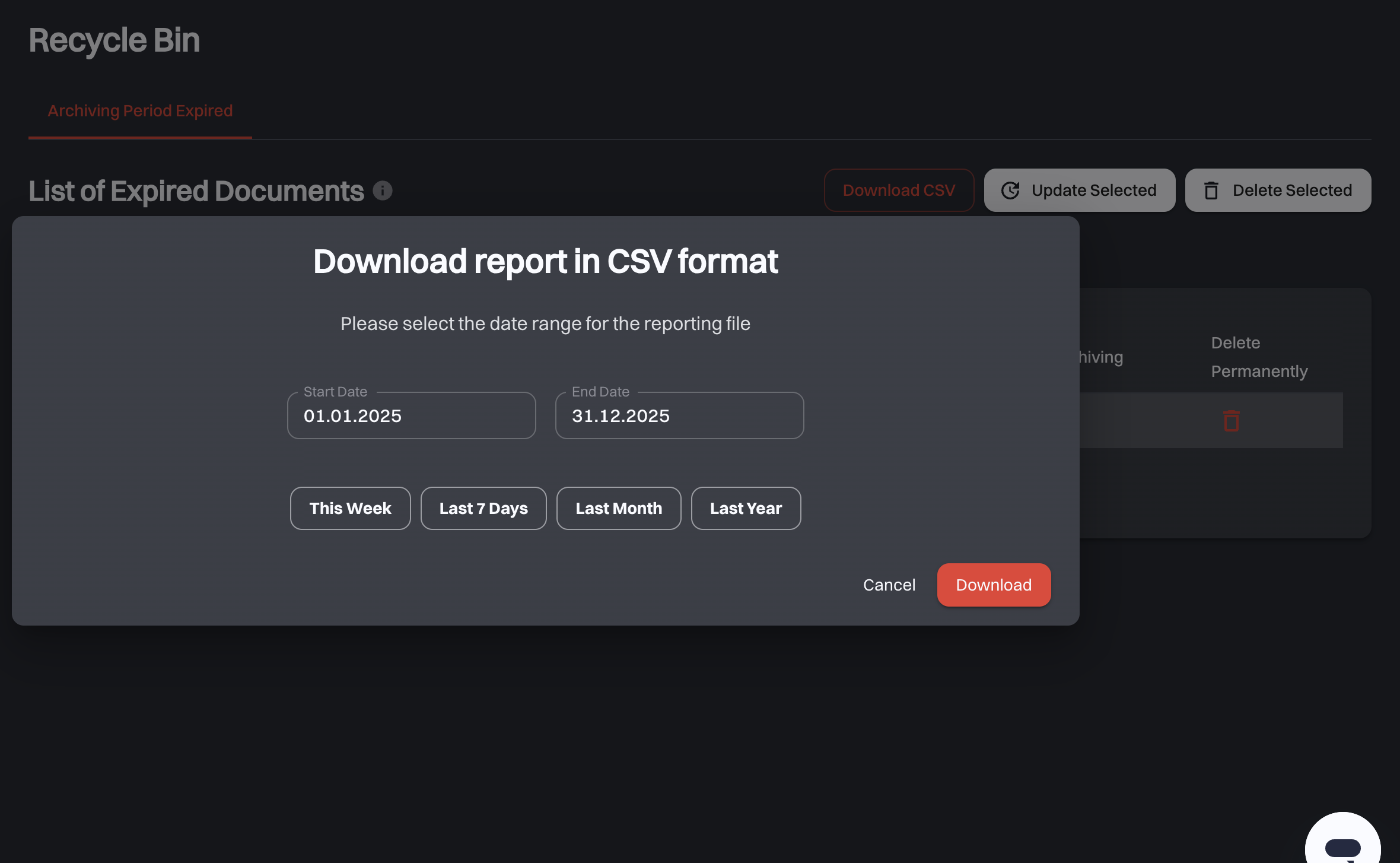
Download CSV produces a report of the documents that were permanently deleted in a date range: evidence of what left the archive, and on whose authority.
Pick a Start Date and End Date, or use one of the shortcuts (This Week, Last 7 Days, Last Month, Last Year), then click Download.
Each row covers one deleted document: its name and path, who uploaded it and when, the date it was archived until, when it moved into the Recycle Bin, and when and by whom it was deleted. Documents in folders you cannot access are left out, and a range with no deletions in it produces no file.
# Four-eye deletion
If your organization has the four-eye principle switched on, deleting is a two-person job: no single person can permanently remove a document.
To turn it on, see Settings → Deletion settings. It requires at least two members who are allowed to approve deletions, and the two approvers are named there.
# Deletion requests
With four-eye deletion enabled, deleting a document does not delete it. It creates a deletion request, and the document stays in the Recycle Bin with its actions disabled until the request is resolved. It can neither be deleted again nor extended in the meantime.
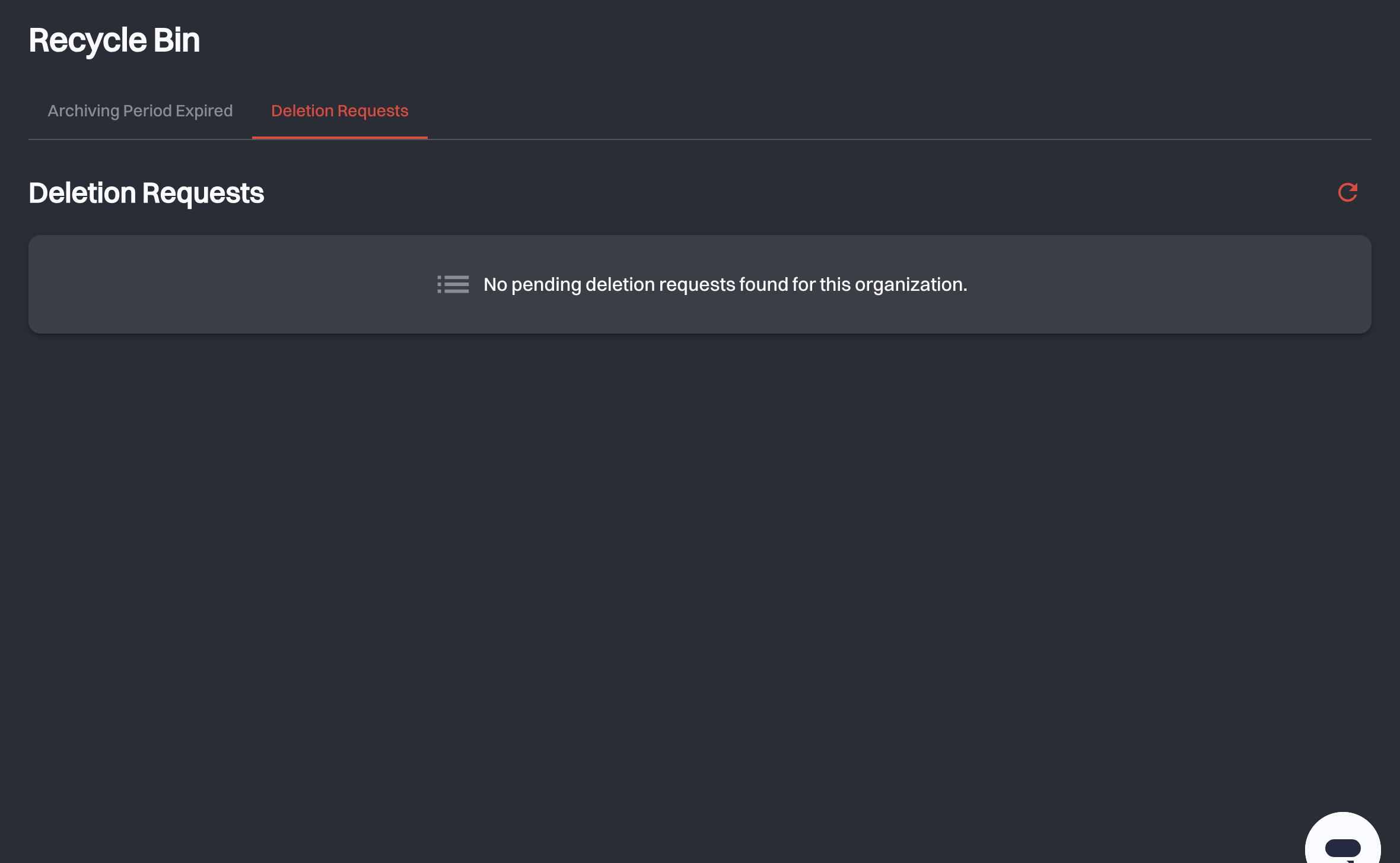
Requests appear on the Deletion Requests tab. This tab is only visible to the approvers named in the settings. Other administrators can request a deletion but never see the queue.
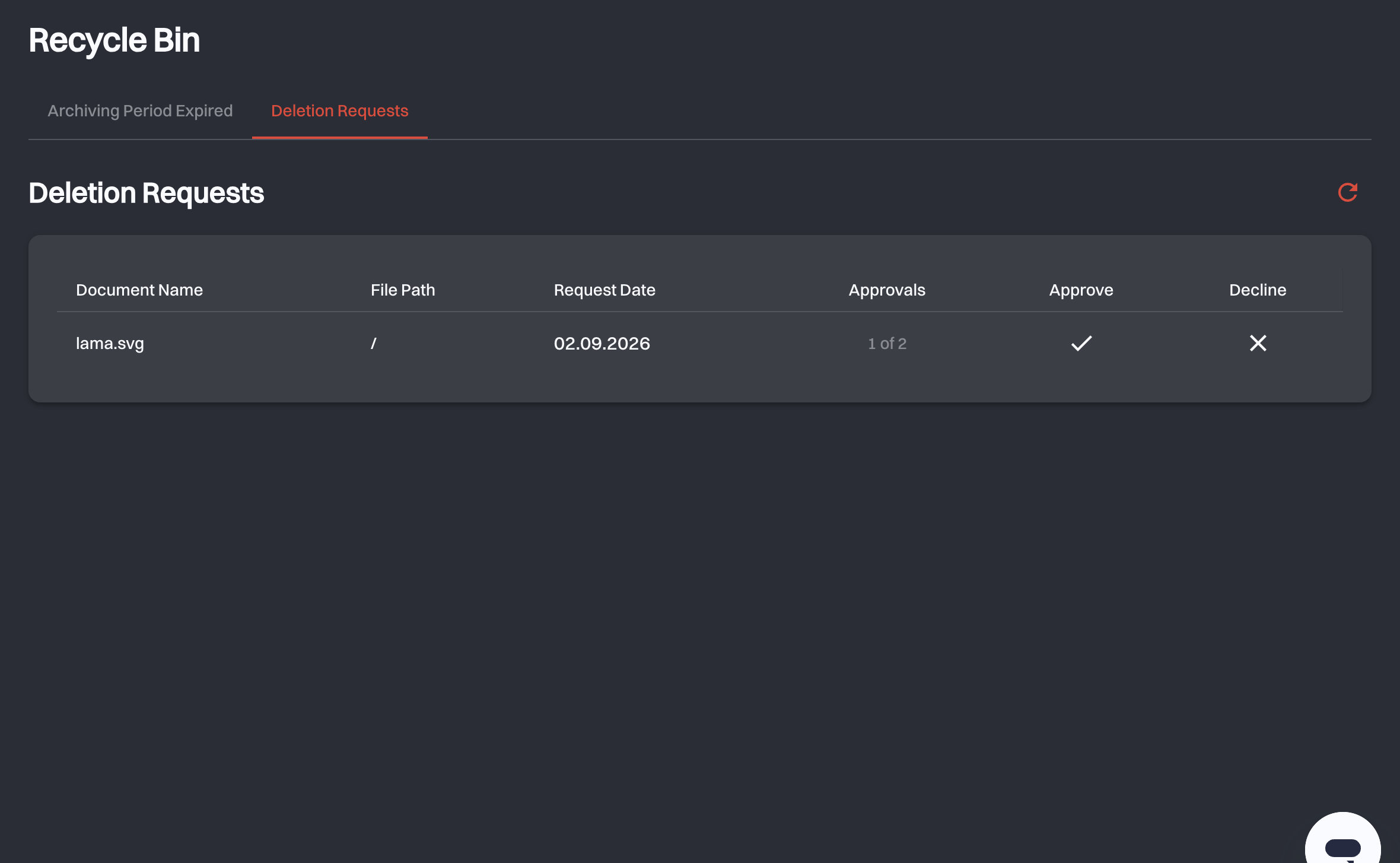
Each request shows the Document Name and File Path, which say what is about to be deleted and where it lives, the Request Date, the Approvals given so far, for example 1 of 2, and Approve or Decline.
Three rules govern what happens next:
- Every approver has to approve. The document is permanently deleted at the moment the last required approval is given. If you are one of the two approvers and request the deletion yourself, your approval is counted at once.
- One decline ends the request. The document stays exactly where it was, and a new request has to be created to try again.
- A vote is final. You cannot change an approval or a decline. Once you have approved, the row stays listed but read-only, waiting for the other approver, and tells you that your part is done.
Changing the approvers voids open requests
The approvers are fixed on a request when it is created. If you change who approves deletions in Settings, open requests become invalid.
# Related
- Archive: how the retention period is set when you upload.
- Settings: enabling four-eye deletion and naming the approvers.
- Chronicle: the record of who deleted what, and when.
- User Management: which roles can delete at all.