
# AI Assistant
The AI assistant answers your questions about a document: what the notice period is, what was invoiced, when something expires. You find it under Archive → AI Assistant.
Only the Account owner and Administrators can use the AI assistant. See what each role can do.
It is most useful when you need a specific fact out of a long document, or a summary before deciding whether to read something in full.
# Before your first chat
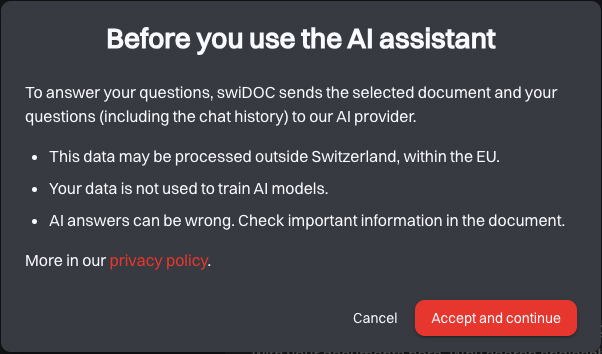
The first time you open the AI Assistant, the dialog Before you use the AI assistant explains what happens to your data. Click Accept and continue to use the assistant. Cancel takes you back, and the dialog appears again on your next visit.
You accept it once for your account, and it applies in every organization you belong to. When the notice changes, swiDOC asks you again.
# Starting a chat
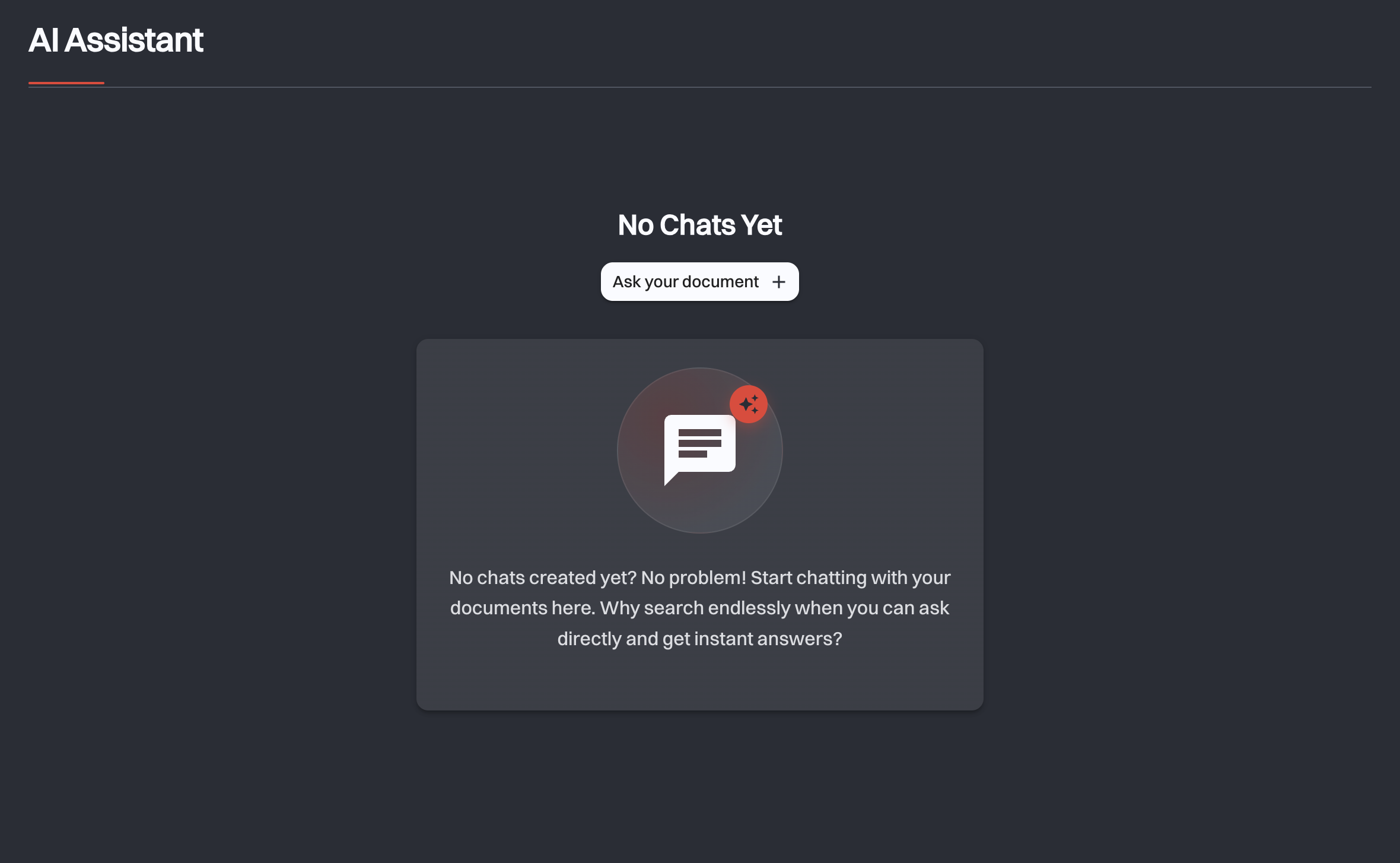
A chat belongs to one document. On an empty AI Assistant page, click Ask your document; once you have chats, use the + next to Browse chats in the sidebar. Either opens the Chat with Files dialog.
- Search for the document. The dialog searches by name and by content, the same way Search does, so you can find it by a word that only appears inside it.
- Select it in the results.
- Click Start chat.
The assistant then prepares the document. Preparing your chat names the step it is on, first Analyzing the document, then Creating the chat. On a large document this takes a few minutes, so leave the page open until it finishes. Not every file can be processed. If yours cannot, you are told "The assistant could not recognize the context of the file" and nothing is created.
To chat about a second document, start a second chat. Each document gets its own conversation, and the ones you have created are listed under Document Chats in the sidebar on the left, with Browse chats above them for finding one again.
Ask, or search?
Use Search when you know roughly what you are looking for and want to find the document. Use the assistant once you have the document and want something out of it.
# Asking questions
Type your question into the message field at the bottom. If you are not sure where to start, the assistant offers a few openers: What is this document about?, Summarize the key points., Who are the people involved in the document?
Under each answer:
- Show source opens Sources and References: the passages the answer was based on, listed by page. This is how you check the assistant against the document itself. It appears whenever the answer is drawn from the document.
- Copy puts the answer on your clipboard.
In a long conversation, the arrow button at the bottom right of the messages jumps back to the latest message.
You are not restricted to text files: the assistant reads scanned documents and photographed pages too. How well it does depends on how legible the scan is, and text recognition covers the same constraint on the search side.
Check the answer against the source
The assistant reads the document, but it can still misread or miss something, particularly in a poor scan. For anything you will act on, open the references and confirm it. The document is the record; the answer is not.
# Your chat history
Your conversations are saved, and they are yours: chats belong to your own account, so colleagues do not see them even when they can open the same document. Open AI Assistant to pick up where you left off: the most recently used chat opens by default.
# What happens to your data
To answer your questions, swiDOC sends the selected document and your questions, including the chat history, to its AI provider.
- This data may be processed outside Switzerland, within the EU.
- Your data is not used to train AI models.
The privacy policy (opens new window) has the details.
# Related
- Search: finding the document in the first place, and how text recognition works.
- Access Management: you can only chat with documents you are allowed to open.
← Search Recycle Bin →