
# Access Management
By default everyone in your organization sees the whole archive. Access Management narrows that down per person: you pick a member, then deselect the folders they should not reach.
You find it under Administration → Access Management. The page itself is titled Folder access.
# Before you start
Video tutorial
Watch the tutorial Nutzerverwaltung und Zugriffssteuerung (opens new window) on YouTube.
Three conditions apply.
- You need to be an administrator. The menu entry only appears for roles that may manage members and see every folder, which in practice means Administrator and the Creator.
- You need at least the Manage | Trustee 10 package. If your package does not include per-folder access control, the page says Access Management isn’t included in your package and offers View subscription. See the pricing page (opens new window) for what each package includes, and Subscription to change yours.
- It needs a desktop screen. The canvas needs room to pan and zoom, so it is not available on phones and tablets. Open it on a desktop or in a larger window.
One rule that never changes
Administrators always reach every folder, whatever you set here. They are shown greyed out in the user list and cannot be selected. If someone should only see part of the archive, give them an Editor or Viewer role first. See User Management.
# The page
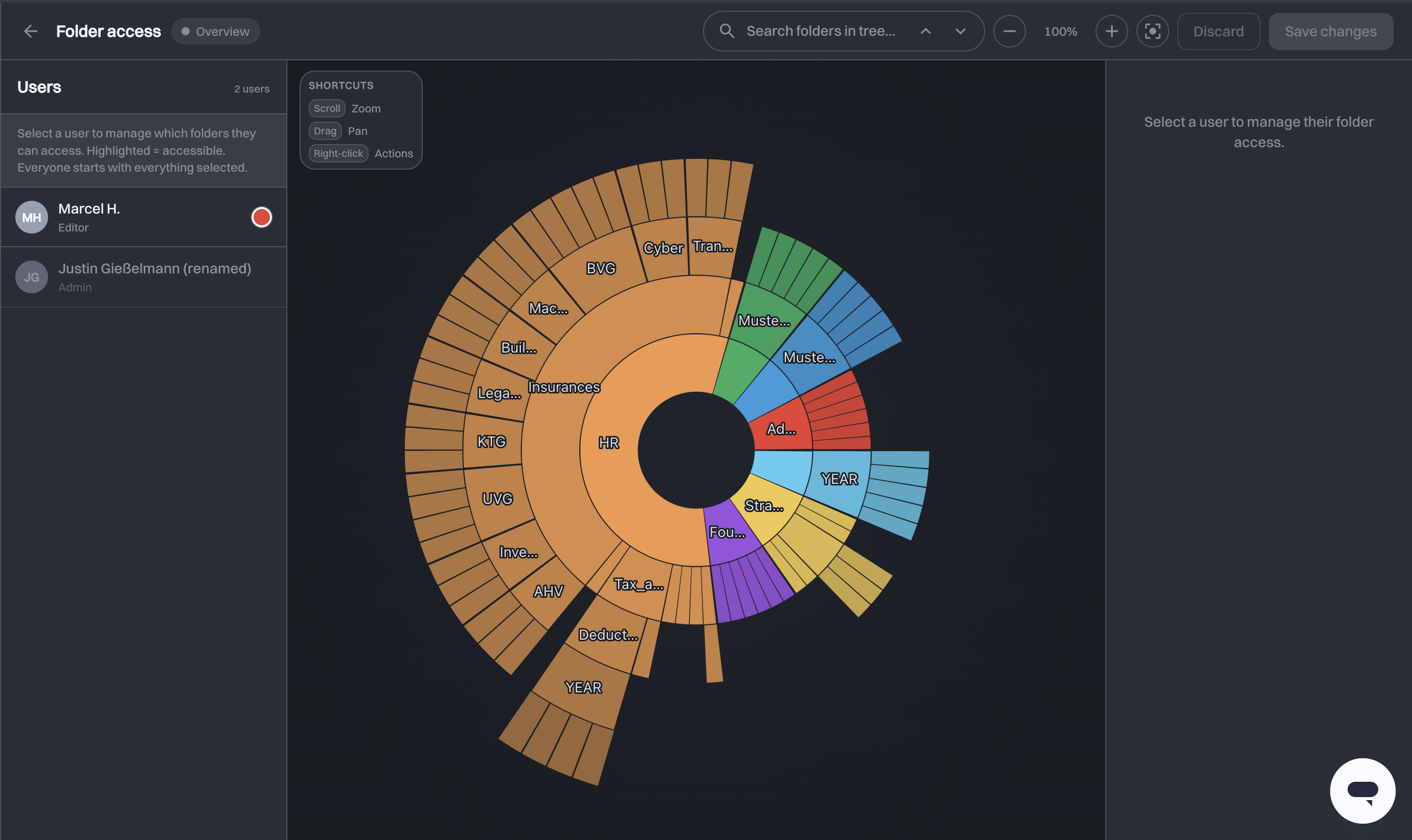
Three areas:
- Users, on the left. Every member, with their role underneath and a coloured dot. Selecting someone switches the page into editing mode for them.
- The canvas, in the centre. Your entire folder tree drawn as a sunburst: the centre is the organization, each ring outwards is one level of subfolders, and the size of a segment reflects how much sits inside it.
- The panel, on the right. In Overview it prompts you to pick someone; while editing it counts that person's folders.
The page has two modes, shown as a pill next to the title:
| Mode | What the canvas shows |
|---|---|
| Overview | Each top-level folder and everything inside it in its own colour. Select someone to see their access. |
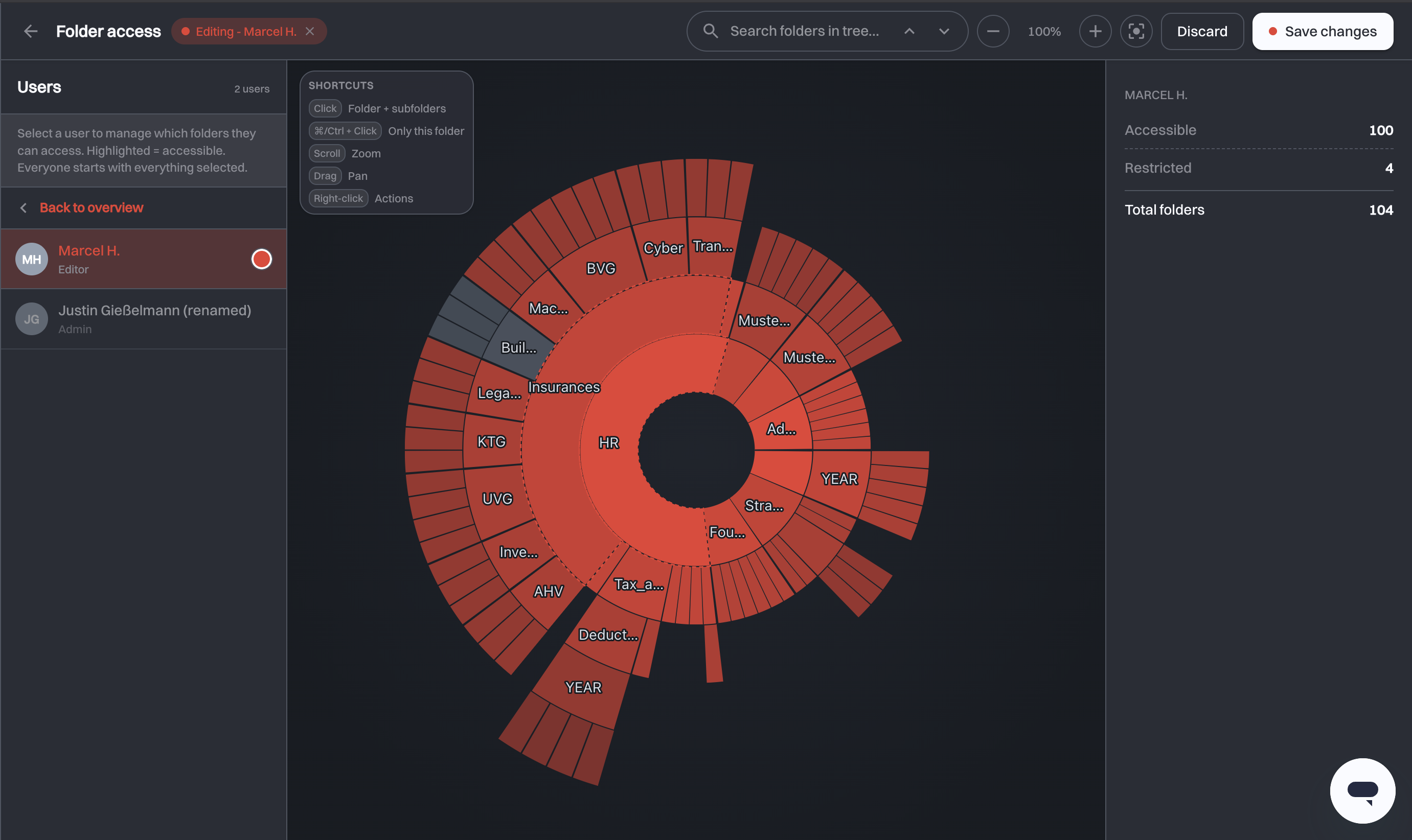
| Editing - name | One person's access: their colour for folders they reach, grey for folders they do not. |
The dot next to each name is the colour that person's folders are drawn in, and you can change it by clicking it. It is a reading aid for the canvas, not a setting that means anything elsewhere in swiDOC.
# Restricting someone's folders
- Click the person in the Users list. The pill changes to Editing - their name, and the canvas repaints in their colour. Everyone starts with everything selected, and a highlighted folder is one they can reach.
- Click a folder to deselect it. That takes away the folder and everything inside it.
- Repeat until the tree matches what they should see. The panel on the right keeps a running count of Accessible, Restricted and Total folders.
- Click Save changes.
Nothing applies until you save
Deselecting folders only changes what you see on screen. Save changes writes it; Discard throws it away. If you try to leave the page, or switch to another user, with unsaved edits, swiDOC asks whether to save or discard them first.
Two more actions on the canvas:
- ⌘/Ctrl + click a deselected folder to give back only that folder, leaving its subfolders out.
- Right-click a folder for Navigate to, which opens that folder in the Archive.
# How folders inherit
One rule governs everything: a folder can only be reached through its parents. So:
- Deselecting a folder deselects everything inside it. There is no way to keep a subfolder while removing its parent outright.
- Selecting a folder deep in the tree also gives back the folders on the path down to it, because otherwise the person could not navigate there. Those pass-through folders are drawn with a ring around them, marking them as reachable, but with something deselected inside.
That is what the ⌘/Ctrl + click shortcut is for: it gives back the path to a folder without giving back the branch below it.
# New folders
Access works by exclusion, so a folder created later is visible to everyone, restricted members included. Two exceptions:
- A folder created inside a folder someone cannot reach is out of their reach too.
- A private folder is hidden from every member except the folder admins.
If someone should see only part of the archive, check their access again after new top-level folders are created.
# Moving folders
Restrictions travel with the folder. Moving a restricted folder elsewhere in the archive keeps its restrictions. The folder also takes on the restrictions of its new parent folders, so a person who cannot reach the destination cannot reach the moved folder either.
# Private folders
A private folder is one that only folder admins see when it is created. Folder admins are the roles that reach every folder: the Creator and Administrators. Only they can create one, and only on a package that includes Access Management.
Private only for the members you have now
People you invite or demote to Editor or Viewer later get access to a private folder unless you exclude it for them, when you invite them or when you change their role.
To create one, tick Private in the Create Folder dialog, which New folder in the Archive opens. swiDOC restricts the new folder for every other member at once.
In the Chronicle, the folder's creation is marked Created privately.
# Finding your way around the tree
| Control | What it does |
|---|---|
| Search folders in tree… | Finds folders by name and outlines the matches. The arrows step through them. While you edit someone's access, a checkbox selects or deselects all matches at once. |
| Scroll | Zooms. The percentage between the − and + buttons shows where you are. |
| Drag | Pans. |
| Fit to view | Zooms back out so the whole tree fits. |
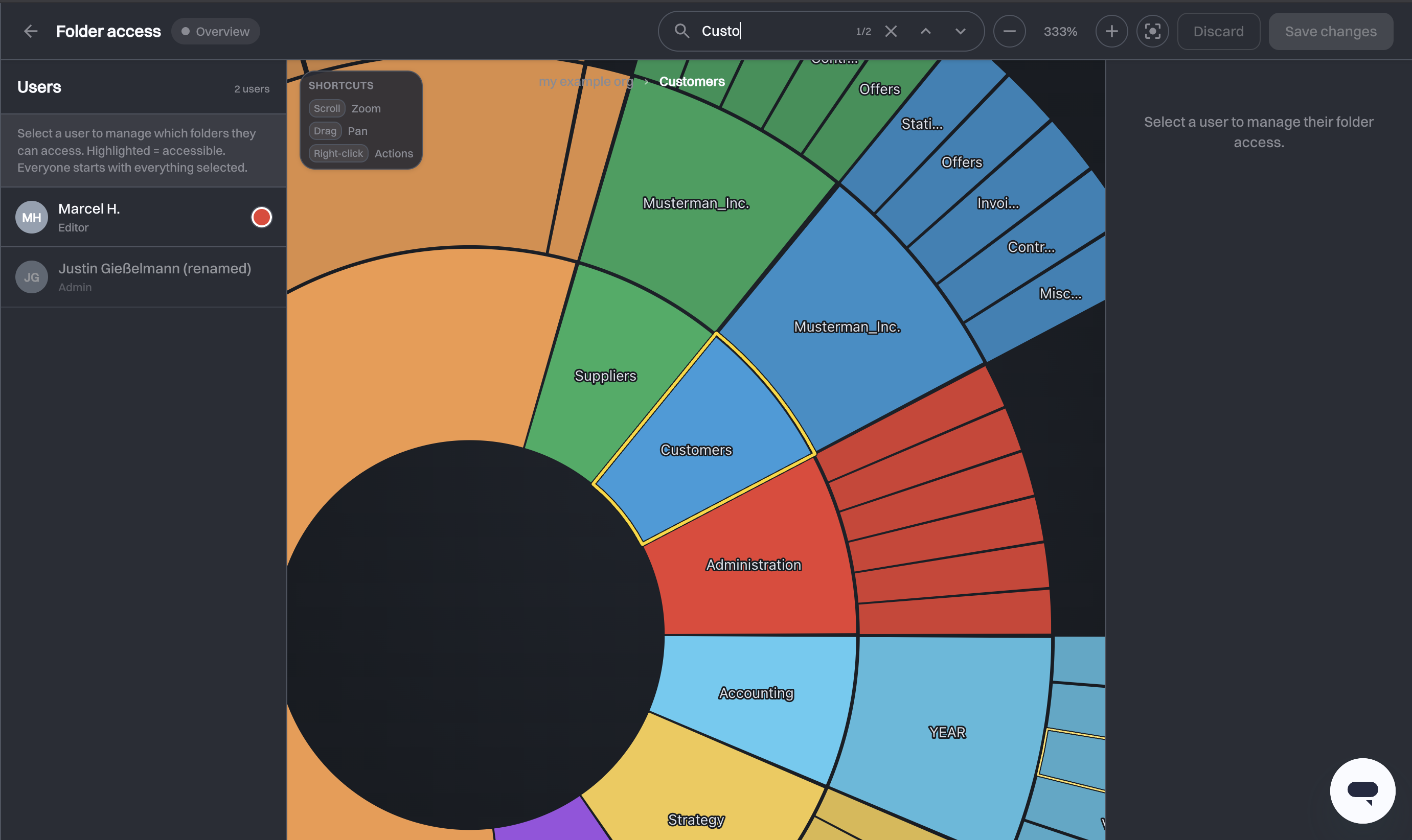
A Shortcuts card in the top-left corner of the canvas lists whichever of these apply in the current mode, so you do not have to remember them.
Search waits for the whole tree
In a large organization the tree loads in pages, and search stays disabled until all of it has arrived, because otherwise it would miss folders that are not loaded yet. The button explains this while you wait.
# Setting access when inviting someone
You do not have to invite someone first and restrict afterwards. The invitation itself offers Give full access or Custom access, and custom access uses the same canvas to pick folders to exclude. It is covered where the rest of the invitation is, in User Management.
Whatever you set at invitation time is what you will find here once the person accepts, and you can change it from then on.
# A worked example
You are a fiduciary with a folder per client, and a bookkeeper who should only work on two of them.
- Invite the bookkeeper from User Management as an Editor, not an Administrator, because no restriction applies to an administrator.
- Open Access Management and select them in the Users list.
- Click each client folder they should not see. The count on the right shows how much you have taken away.
- Save changes.
- When they take on a third client, come back, click that client's folder to select it again, and save.
To give someone a single folder, for example Clients, there is no button that deselects everything. After step 2, click every other top-level folder until only Clients keeps their colour, then save. A top-level folder created later is visible to them again; see New folders.
# If a save fails
If someone is reorganizing folders at the same moment, the save is refused. swiDOC says the folders are being reorganized and asks you to try again in a moment. Your selection is kept, so you only need to press Save changes again.
The folder tree can also change while the page is open, for example when someone creates or moves a folder. Without unsaved changes, the page reloads the tree by itself. With unsaved changes, it says that the folder tree has changed and blocks Save changes: click Reload to continue, which discards your edits. If the folders you edited changed since they were loaded, the save is refused and nothing is saved. Reload and save again.
If the save fails for any other reason, swiDOC says that the access settings could not be saved. Try again later.
# Related
- User Management: roles, invitations, and setting folder access as you invite.
- Archive: creating and moving the folders you restrict here.
- Subscription: whether your package includes per-folder access control.