
# Subscription
You find your subscription under Administration → Subscription, which opens the Subscription tab of My Profile. It shows the package you are on, how much of it you are using, and which packages you can move up to.
A subscription belongs to you, not to an organization. The tab always shows your own package and the organizations you created yourself, whichever organization you happen to have open. Being a member of someone else's organization changes nothing here: their package stays theirs, and it is not shown to you.
If you have no subscription of your own yet, the tab takes you to the trial setup instead.
# The two package families
Which family you want depends on whether you archive for one organization or for many clients.
Package S, Package M and Package L are for a single organization. Sized for freelancers, small businesses and mid-sized companies that want a paperless, legally compliant archive for themselves, with a small number of users included.
The Manage | Trustee packages are for fiduciaries and larger companies. These are multi-client: you manage many client organizations from one subscription, with a higher user limit. From Manage | Trustee 10 upwards they also include Access Management, the per-user folder access control.
Where to find package names, prices and limits
They live on the swiDOC pricing page (opens new window), and each package card in the app has a Show included features link listing what that package contains: users, organizations, storage, and features such as API access, integrations and folder access control.
# Your subscription at a glance
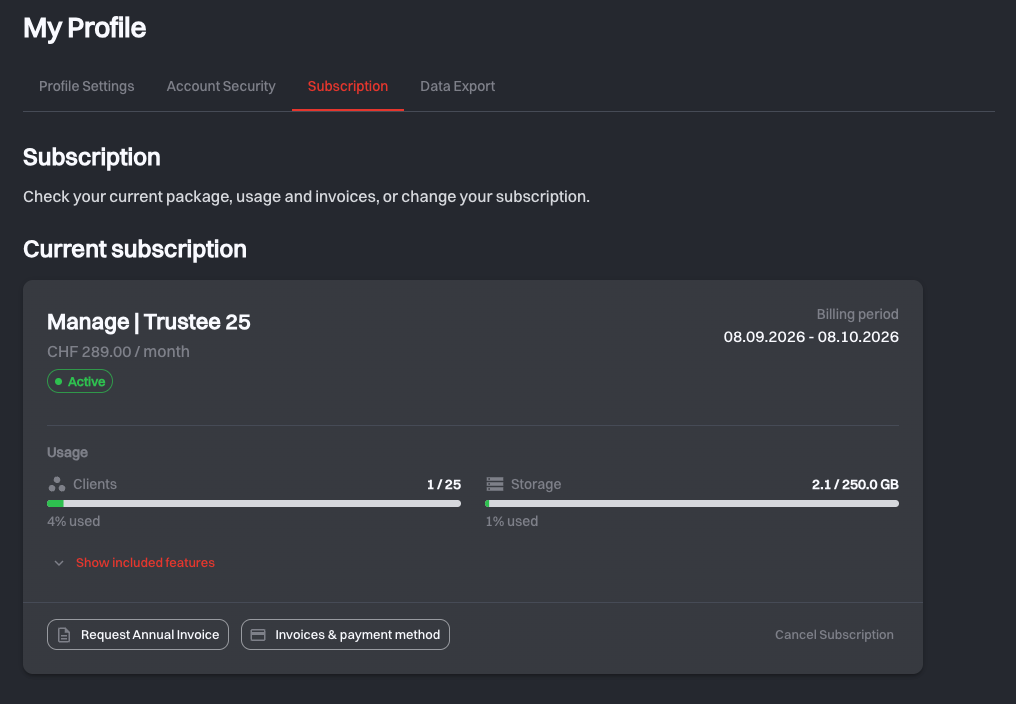
Current subscription is one card holding the state of your subscription:
- the package name and its monthly price;
- a status badge, one of In Trial, Active, Past Due, Unpaid, Incomplete, Canceled or Expired;
- the Billing period you are currently being billed for, or, depending on the status, Trial ends, Expires on, Due since or Ended on;
- Show included features, which unfolds what the package contains.
# Usage
The Usage meters in the same card show how much of the package you have taken, each with a percentage and a warning as it fills up:
- Storage: how much of your storage is used.
- Users: on Package S, M and L, how many of your included seats are taken.
- Clients: on the Manage | Trustee packages, how many client organizations you manage.
A meter that is nearly full is the signal to upgrade before an upload or an invitation is refused.
# Trial
Your first subscription is a 30-day free trial, and no payment method is asked for to begin it. You get the trial once per account. The header counts the remaining days down for you.
Ending the trial early is a button: Subscribe now on the subscription card turns it into a paid subscription. You are told what will be charged today and then monthly, and if there is no card on file yet you enter it on Stripe's secure page and come straight back. Once it converts, the first month is charged and the invoice appears under Invoices & payment method.
If a trial runs out with no paid subscription behind it, your access is restricted until you subscribe: uploading documents, automatic imports from email, bexio and Pebe Live, creating organizations and inviting people are refused. You can still open and download your documents, and they are not deleted at that moment. See What happens to my documents if I cancel?.
# Upgrading
Upgrade options lists the packages above your current one, with a Recommended badge on the next package up. If you are already on the largest package, the section says so instead.
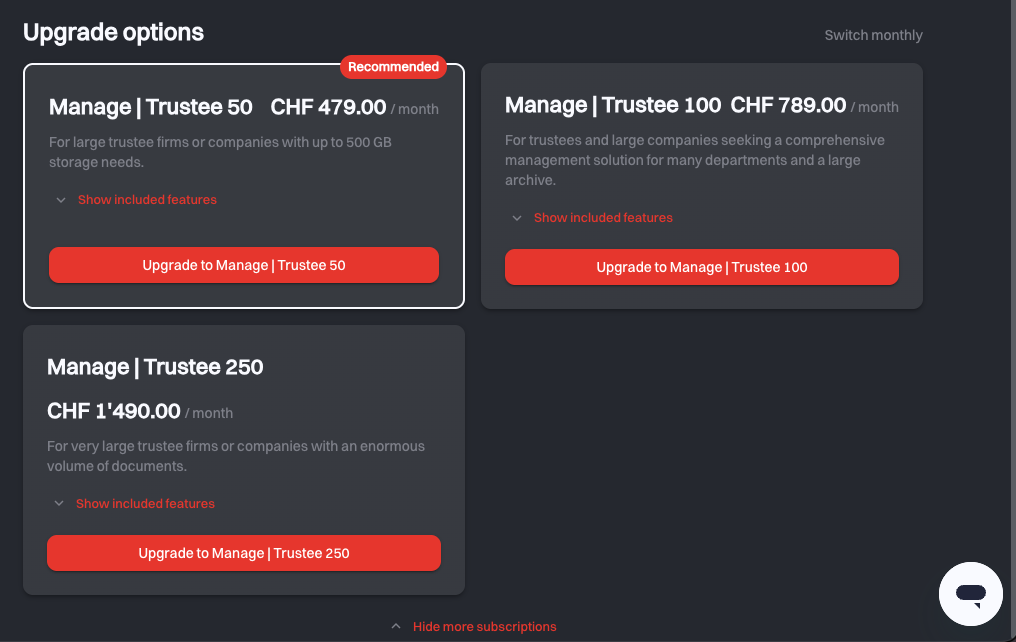
Upgrade to package opens a confirmation showing your Current subscription and your New subscription side by side. Nothing is charged before you confirm it. When you do:
- the new package is active immediately;
- you pay only the difference for the days left in the current billing period, charged to your payment method right away;
- your next invoice covers the full month at the new price.
During the trial, an upgrade works differently: it ends the trial right away and starts the paid subscription on the new package. This needs a payment method on file. Without one, the upgrade fails and the app asks you to add one under Invoices & payment method.
Downgrading is not a self-service action. Contact us (opens new window) and we will arrange it.
# Payment and invoices
The footer of the card holds both billing routes.
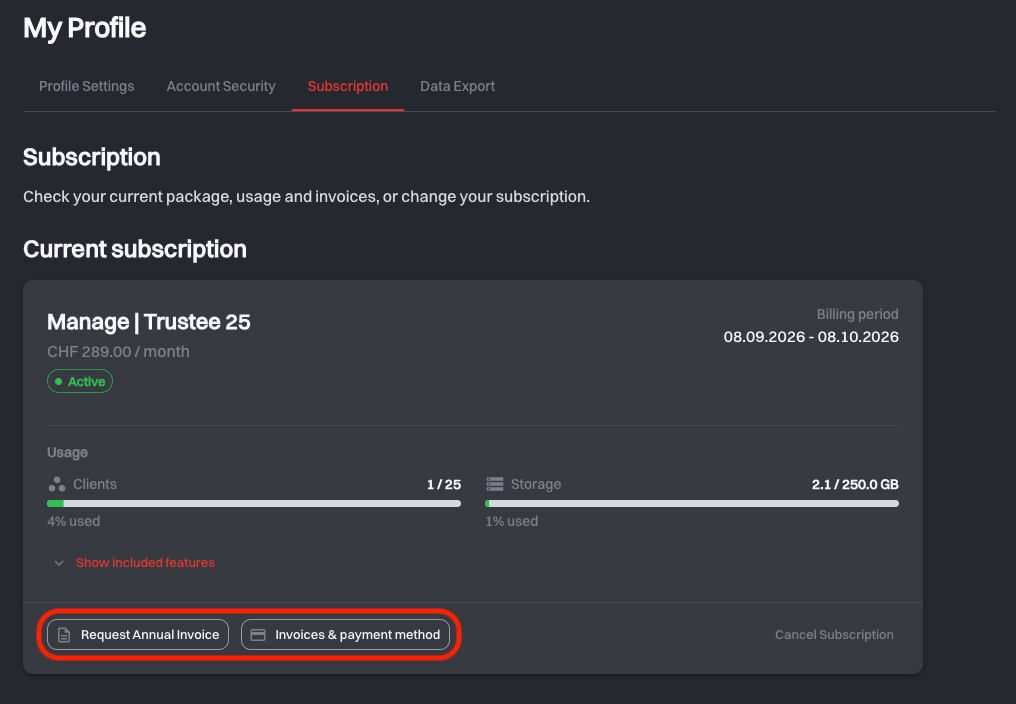
- Invoices & payment method opens the Stripe (opens new window) billing portal, where all your invoices and your payment method live. Everything to do with the card on file is done there.
- Request Annual Invoice opens a short web form. Annual billing is arranged with us, so this starts a conversation and someone gets back to you to set it up.
If a payment fails, the card tells you and points at the same portal: update your payment details there to keep your access.
# Cancelling and renewing
Cancel Subscription sits at the right of the same footer.
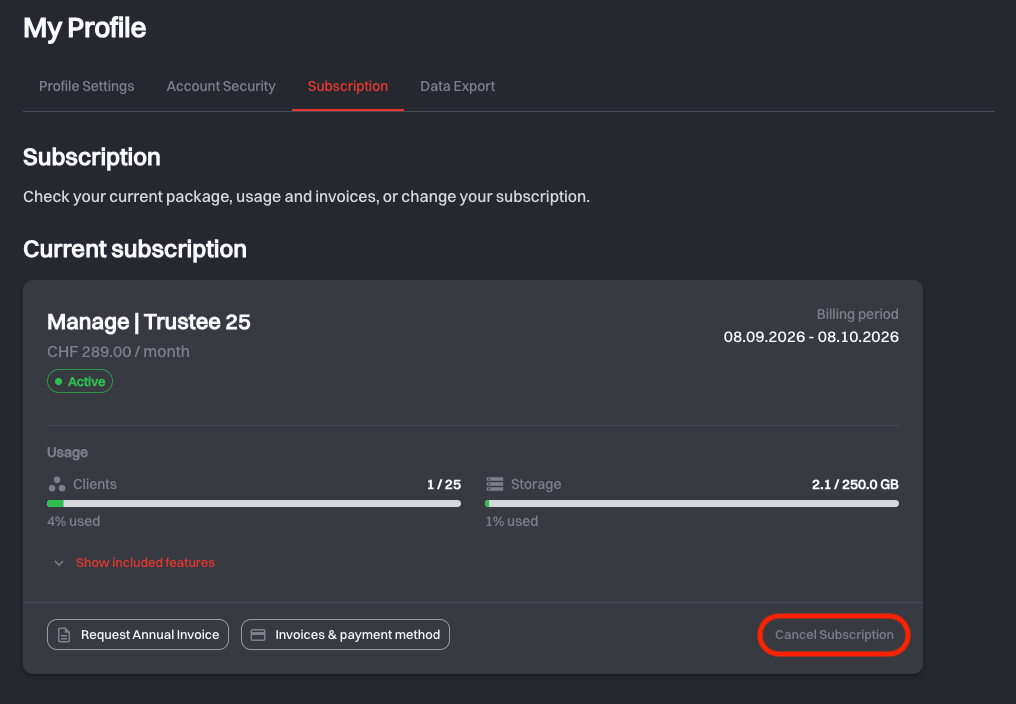
Cancelling takes effect at the end of the current billing period, not immediately. The dialog names that date, tells you how long you keep access to your data afterwards, and asks you to confirm that you have understood the deletion deadline. The card then shows a Cancellation scheduled badge and an Expires on date, and you keep full access until it passes. Until then, Renew Subscription undoes it from the same place.
Only you can cancel your own subscription. When you do, every member of the organizations you created gets an email about the cancellation.
# After the subscription has ended
An ended subscription cannot be renewed, so coming back means starting a new one. The same applies to a subscription that was never activated because its first payment did not go through. The page offers two ways:
- Subscribe again starts a new subscription on the package you had. It is only offered while that package can still be booked.
- Choose a subscription lists every package you can book, each billed monthly. Choose package opens Start a new subscription, where you check the package before you Continue to payment. If your previous package can no longer be booked, the section says so and you pick one of the others.
Either way, the new subscription starts today and you pay the first month in full on Stripe's secure page. After that, it renews every month until you cancel it.
Your documents are deleted after the grace period
After the subscription ends you have 90 days to export your data, and the cancellation dialog and the notice on the card both state the exact deadline. After that, all stored documents are permanently deleted.
Request your data export well before then. It is charged for and can take up to 24 hours to prepare, so it is not something to start on the last day.
# Related
- My Profile: the account page this tab lives on, including data export
- Access Management: the per-user folder access included from Manage | Trustee 10
- FAQ: pricing, package changes and what happens to documents after a cancellation