
# My Profile
My Profile holds everything that belongs to you personally. Open it from the circle with your initials at the top right, then My Profile.
The page is a set of tabs:
| Tab | What it is for |
|---|---|
| Profile Settings | Your name and your registered email address. |
| Account Security | Your password and two-factor authentication. |
| Subscription | Your package, usage and billing, covered in Subscription. |
| Data Export | A paid download of the organization's complete archive. |
Profile Settings, Account Security and Subscription are there whatever your role. Subscription shows your own subscription, and if you have none yet it takes you to the trial setup. Data Export is shown only to the organization's Creator. Roles are explained in User Management.
Organization-wide settings live elsewhere. See Settings.
# Profile settings
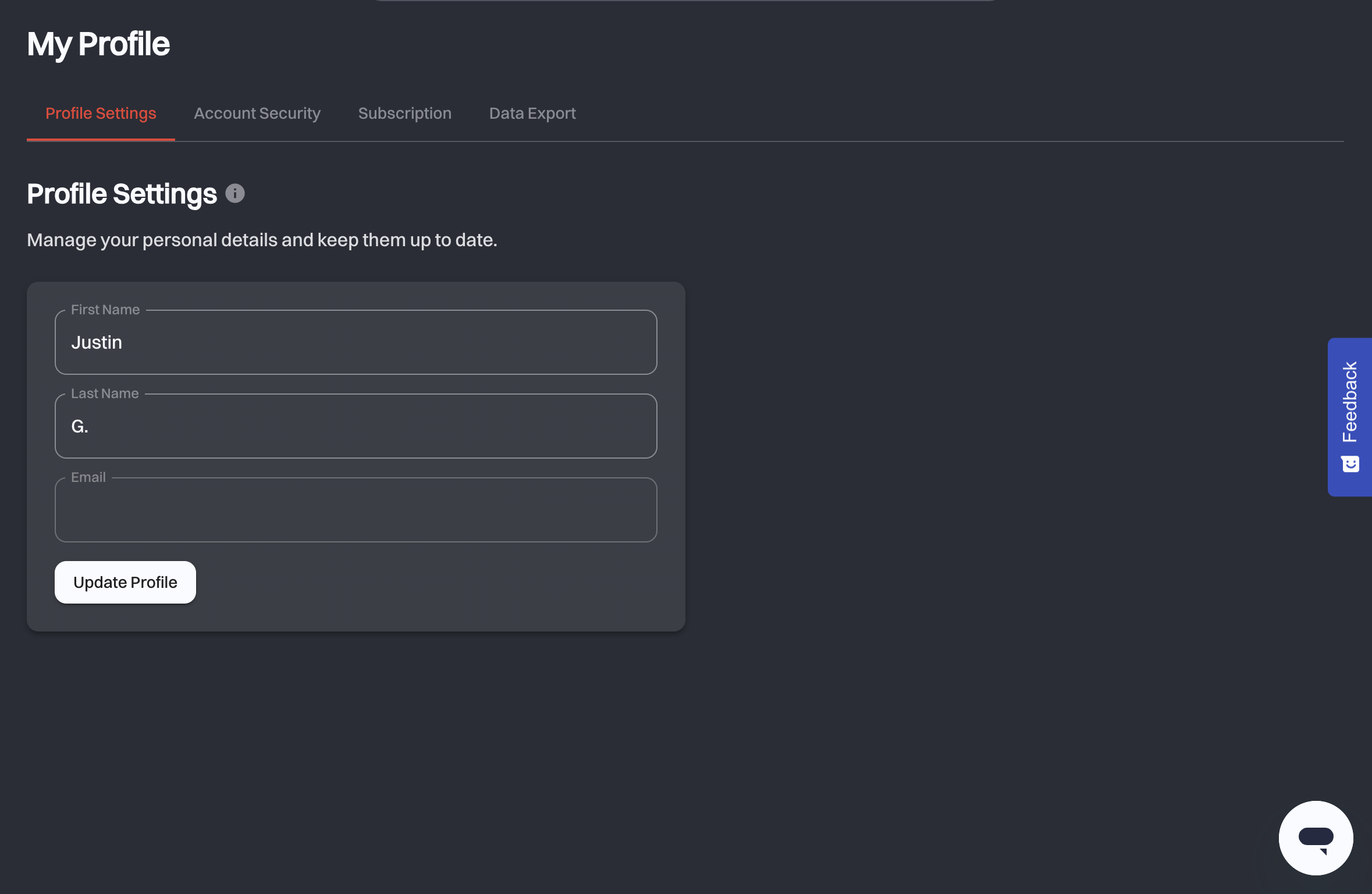
Your personal details, and the one place to correct them:
- First Name and Last Name: what colleagues see in the user list and in the Chronicle.
- Email: your registered address, shown for reference. It cannot be changed here.
- Update Profile: saves your changes.
# Account security
Unless you signed in only a few minutes ago, the Account Security tab first asks you to sign in again. Password Required asks for your email and password, and only Verify opens the settings, so nobody can change your security options on a machine you left unlocked.
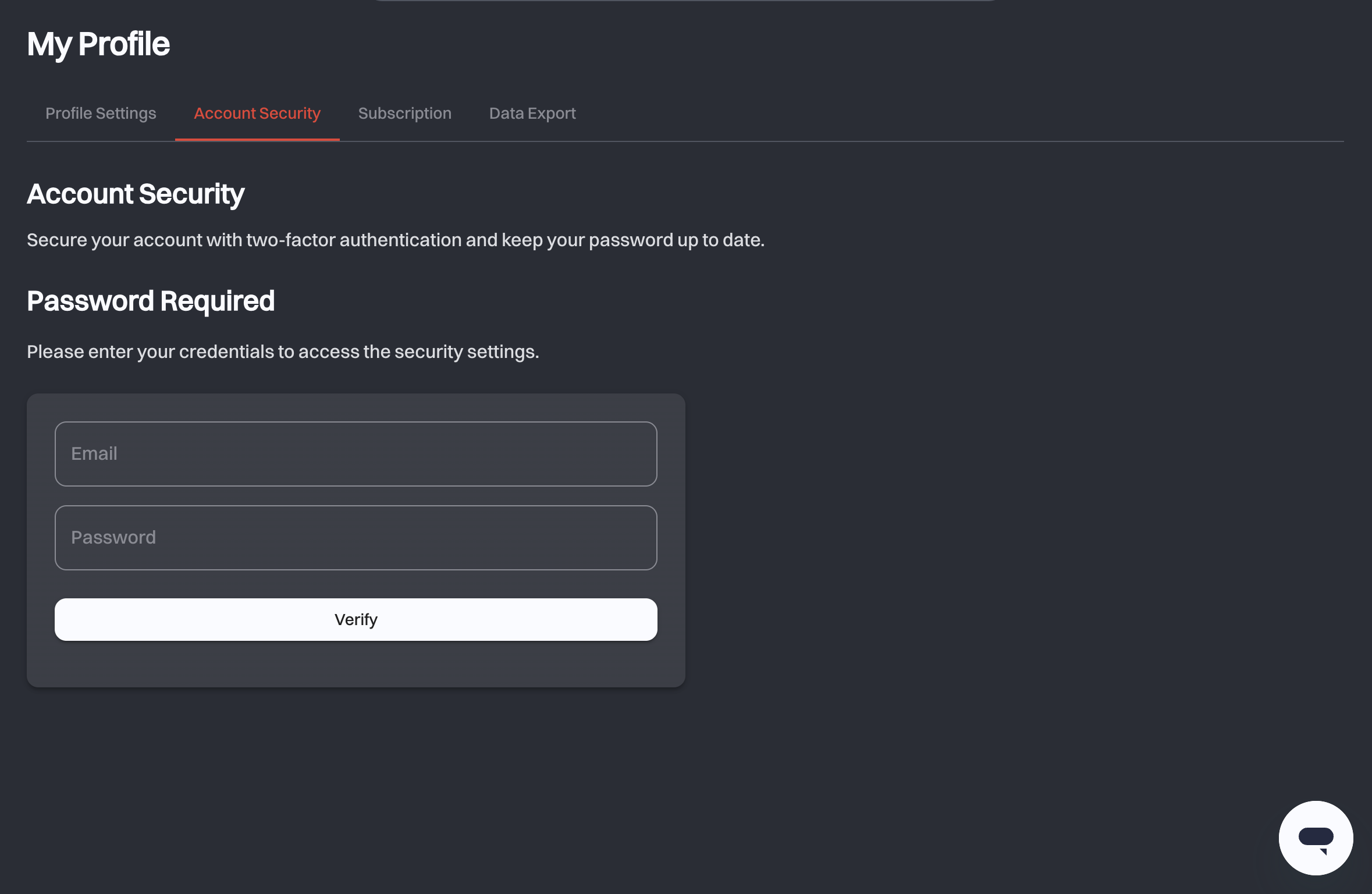
Behind it are the two things that most improve the security of your account and of everything archived in it: two-factor authentication and a current password.
# Two-factor authentication
swiDOC's second factor is a one-time code sent by SMS. As well as your password you enter that code when you sign in, so a stolen password on its own is not enough to reach your archive.
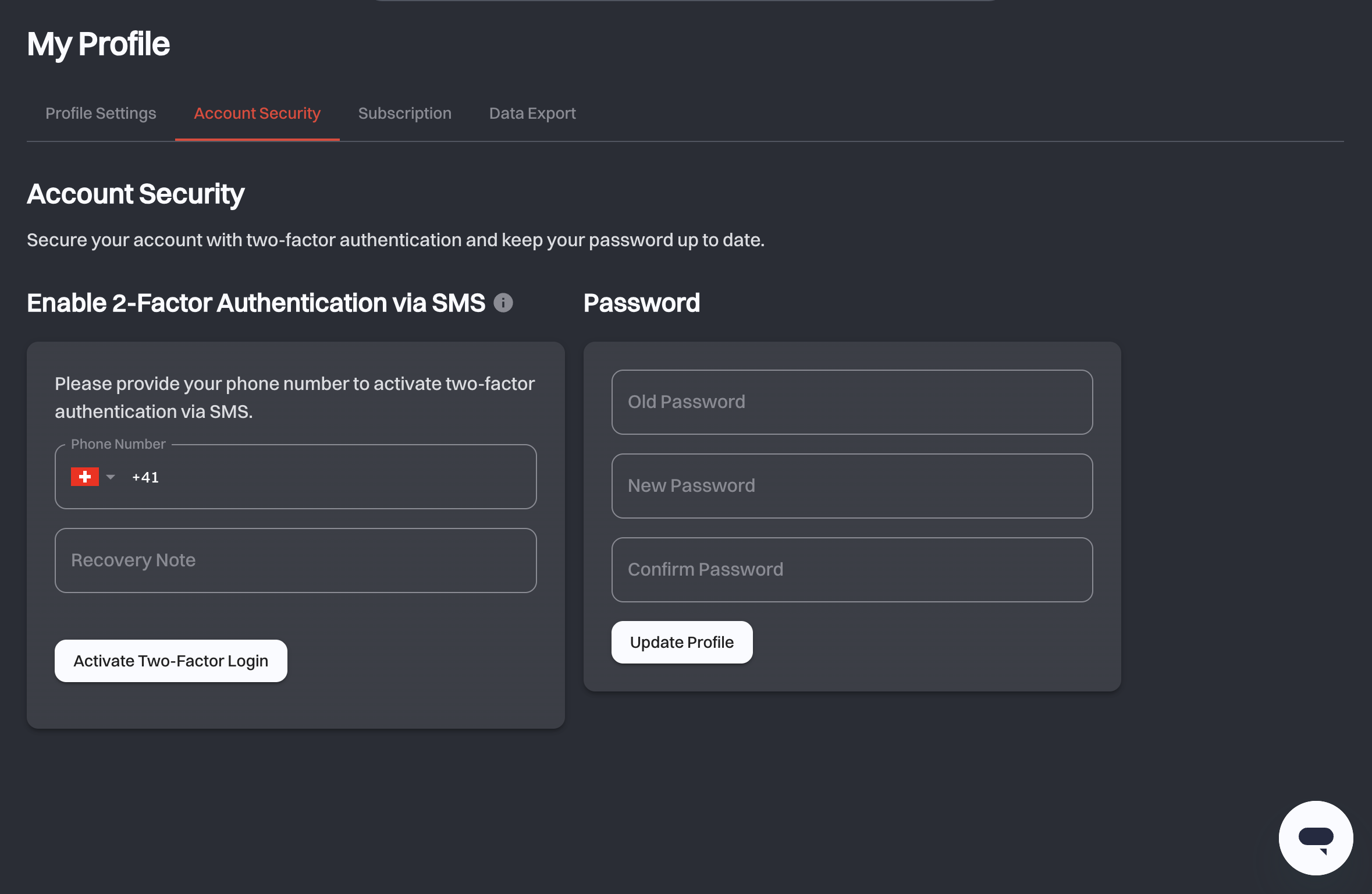
Under Enable 2-Factor Authentication via SMS:
- Phone Number: the number the codes are sent to. It is used for nothing else.
- Recovery Note: a name for the device you are using, for example your work phone, for your own reference. swiDOC does not use it to recover your account. It needs at least four characters.
- Activate Two-Factor Login: sends a verification code to that number by SMS. Enter it under Verification Code and confirm with Submit Verification Code to turn the second factor on.
Once it is active the card says so, and offers Disable Two-Factor Authentication. Keep your phone number current: an old number means codes going to a phone you no longer have.
If you lose the phone, you cannot sign in on your own, because swiDOC has no recovery codes. Write to info@swidoc.ch for help.
If you sign in with Google
An account linked by Google Single Sign-On manages its password and 2FA in the Google account, not in swiDOC. The tab says so and links to your Google security settings, and the swiDOC fields are not shown.
# Changing your password
In the Password card, enter your Old Password, then your New Password, and re-enter the new one to confirm it. The form lists what the new password still needs, and it cannot be the same as the old one. Save with Update Profile.
# Data export
A data export is a paid, complete download of one organization's archive: every archived document, in the folder structure you see in swiDOC, packaged as one ZIP file. It is what you use when you leave swiDOC, when an audit needs an offline copy, or when you want a backup you control.
The Data Export tab is available to the organization's Creator only, and the export always covers one organization: the one named at the top of the tab.
# What it costs and how long it takes
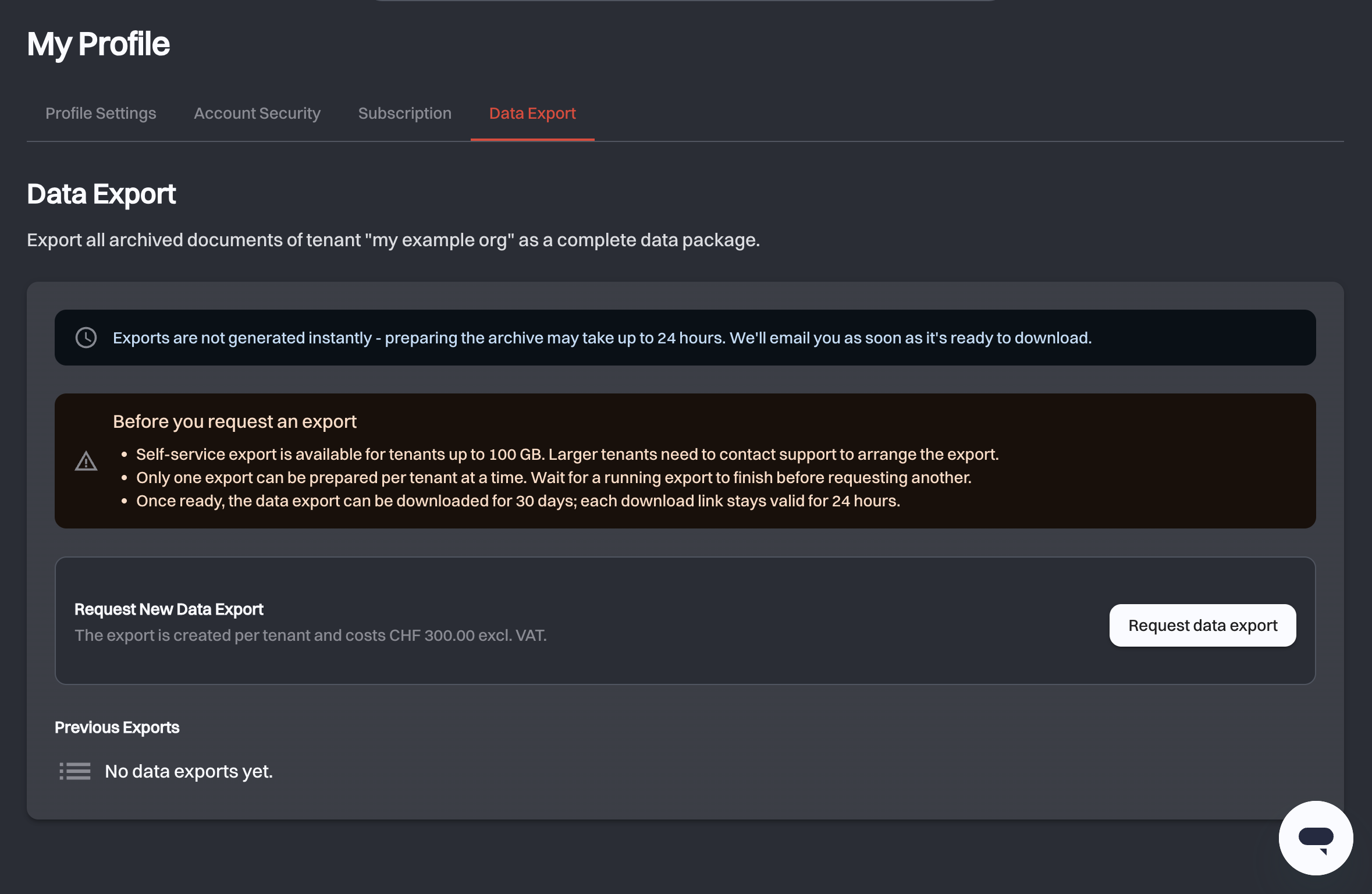
- An export costs CHF 300.00 excl. VAT per organization.
- Exports are not generated instantly. Preparing the archive can take up to 24 hours.
- You get an email with the invoice when your payment is received, and another one as soon as the export is ready to download.
# Before you request one
The Before you request an export panel states the three limits that decide whether you can go ahead:
| Limit | What it means |
|---|---|
| Size | Self-service export covers organizations up to the size shown in the panel. Above it, support arranges the export. |
| One at a time | Only one export per organization can be prepared at a time. Wait for a running one to finish before requesting another. |
| Download window | Once ready, the export can be downloaded for 30 days; each individual download link is valid for 24 hours. |
# Requesting an export
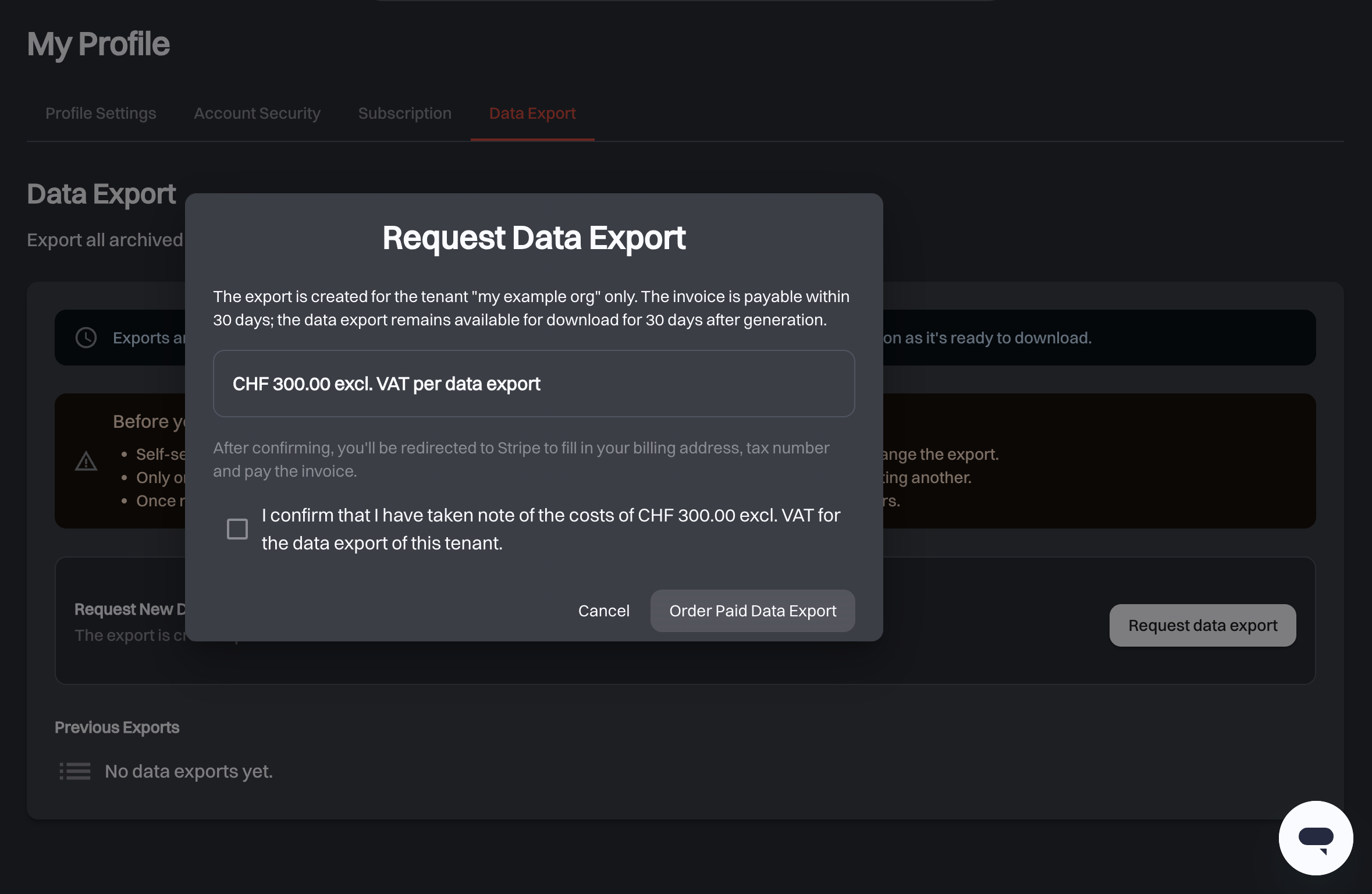
Request data export opens a confirmation dialog: the organization it covers, the price, and a checkbox confirming you have taken note of the cost. Order Paid Data Export then hands you over to Stripe (opens new window), where you fill in your billing address and tax number. Stripe then issues an invoice that is payable within 30 days. Preparation starts only once the invoice is paid, so pay it right away if your subscription is about to end.
# Tracking your exports
Previous Exports lists everything you have requested, with Requested on, Status, Valid until and the Action you can take on it:
| Status | Meaning |
|---|---|
| Awaiting payment | The invoice is not settled yet. Use Pay invoice. |
| Cancelled | The invoice was not paid in time or was voided. Nothing was charged. |
| Queued | Paid, waiting for a slot. |
| Generating | The archive is being packaged. |
| Ready | Available to Download. |
| Expired | The 30-day window has passed; request a new export. |
| Failed | Something went wrong. Use Retry. You do not pay again for the same export. |
Retry is available even while another export for the same organization is running.
Before you cancel
Cancelling does not delete your documents on the spot, but the window is finite. Request your export in good time. See Cancelling and renewing.
# Related
- Subscription: your package, usage, invoices and cancellation
- Settings: the organization's settings
- User Management: the roles that decide which tabs you see
← Subscription FAQ →